After-Hours Emergency Call Forwarding
Do you have after-hours 24/7 support for critical/urgent situations? We have many customers like dentists, family doctors, plumbers, electrical contractors and even our own business that uses after-hours emergency call forwarding.
We Have 3 Options Available for After Hours Call Forwarding
Giving customers an option to connect directly with an external number.
Ring Group For Multiple Numbers
Setup multiple numbers to ensure that no after-hours calls are missed.
After Hours Voicemail Notifications
Instead of answering calls at 2:00am, callers are prompted to leave voicemail. Our system then alerts your on-call employee that a voicemail has been left and needs to be returned immediately.
Auto Attendant Direct Calling
The most straight forward approach is creating an auto-attendant after hours and including a script prompt like: "If you require immediate assistance, press 4 to be connected to our after-hours technician / doctor / etc."
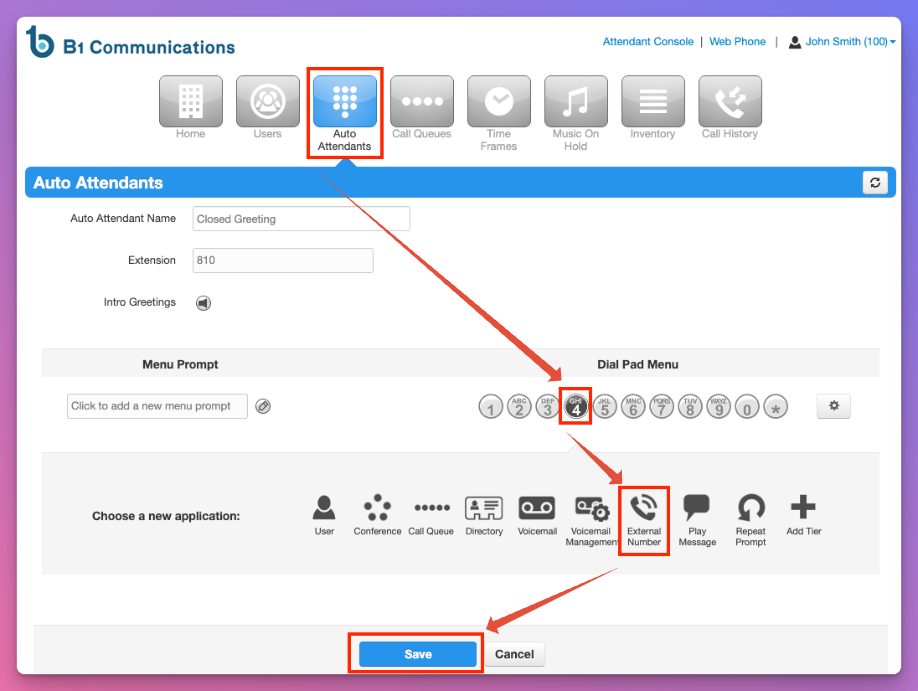
1. Log into your manager portal and select Auto Attendant.
2. Select your closed auto attendant, or create an after hours auto attendant.
3. Select the number option you would like to use. In this example, we are using 4.
4. Select 'External Number'
5. Type the number of your on-call employee or external provider.
6. Select Save. Test and verify that it's working as expected.
Ring Group For Multiple Numbers
Instead of routing calls to one external number, callers can be connected to multiple numbers which can be tiered and delayed to guarantee callers will be connected to your team.
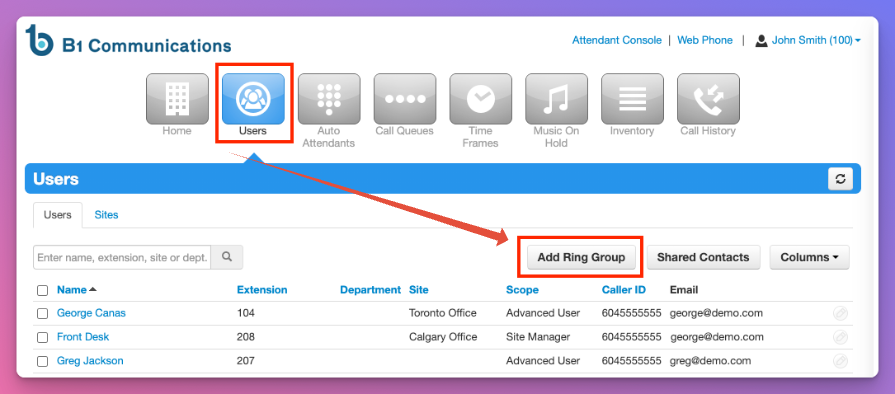
Step 1. Log into your manager portal and select Users on the main menu.
Step 2. Select 'Add Ring Group'
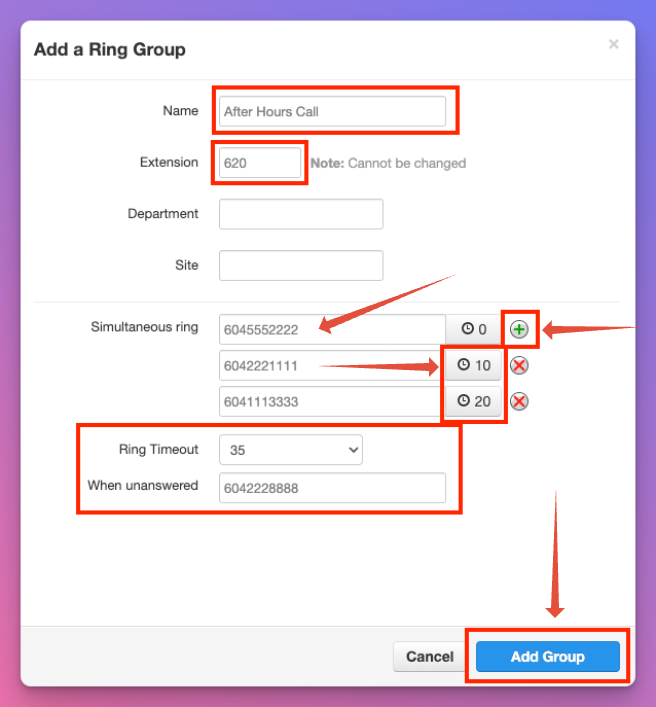
Step 3. Create the name. Something like 'After-Hours Support'
Step 4. Create a 3 digit extension number, we recommend using the 600 bank.
Step 5. Type the number of your team member or external provider in the field beside Simultaneous Ring.
Step 5. Use the Green + Button to add more numbers.
Step 6. Select the clock button beside the number to delay the system from calling. In this example, callers will be connected with the first number, and if it doesn't answer within 10 seconds, the second number will ring, etc.
After Hours Voicemail Notifications
What does the after-hours notification system do?
When your customers leave a voicemail in your after-hours voicemail notifications inbox, your staff will receive a phone call every 5 minutes from our system. They are required to accept the after-hours voicemail by entering the voicemail PIN then confirm receipt of the voicemail message.
If you would like to setup a voicemail notifications system, contact your Account Manager or support team. Our team will create a new user which will be used for your Voicemail Notifications with an enabled section within the Voicemail notifications area of your extension.
1. Log into your manager portal and select user in your top navigation.
2. Select the user that is assigned as your Voicemail Notifications.
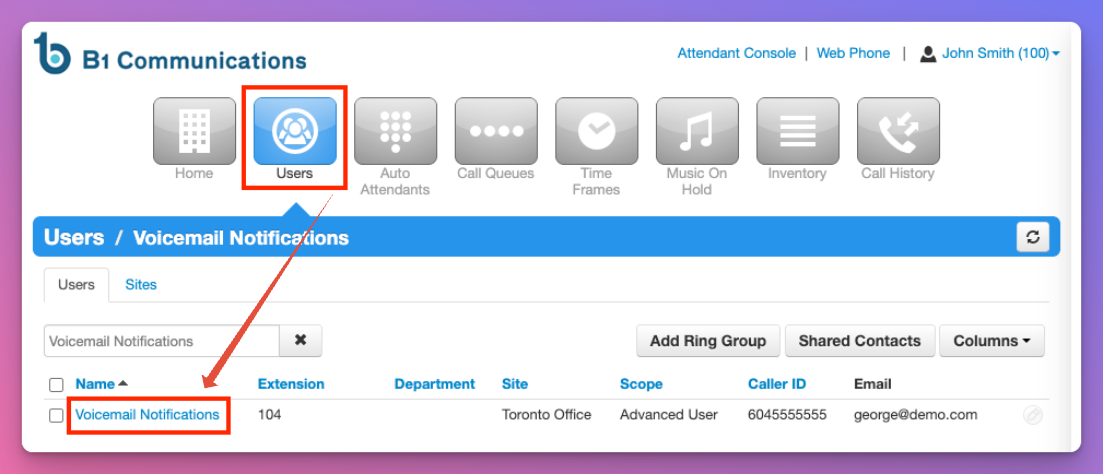
3. Select Voicemail on the users sub-menu.
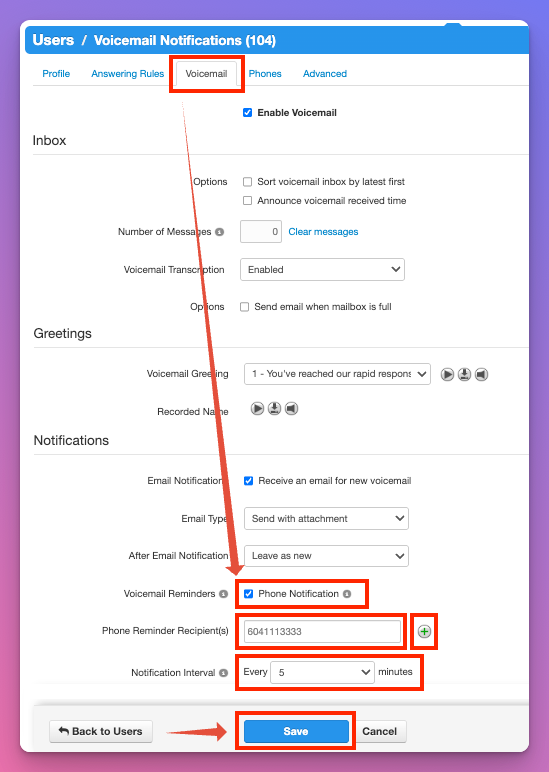
4. Scroll down to the bottom section called 'Notifications.' There will be new options that are not available for users.
5. Checkmark 'Phone Notifications.'
6. Enter the phone number of your employee that you'd like to be notified.
7. Select the + Icon beside the number to add additional numbers.
8. Notification Intervals. How often would you like the system to call each employee. Typically we recommend the default 5 minute mark.
9. Select 'Save.'
Manage your Voicemail Notifications Message
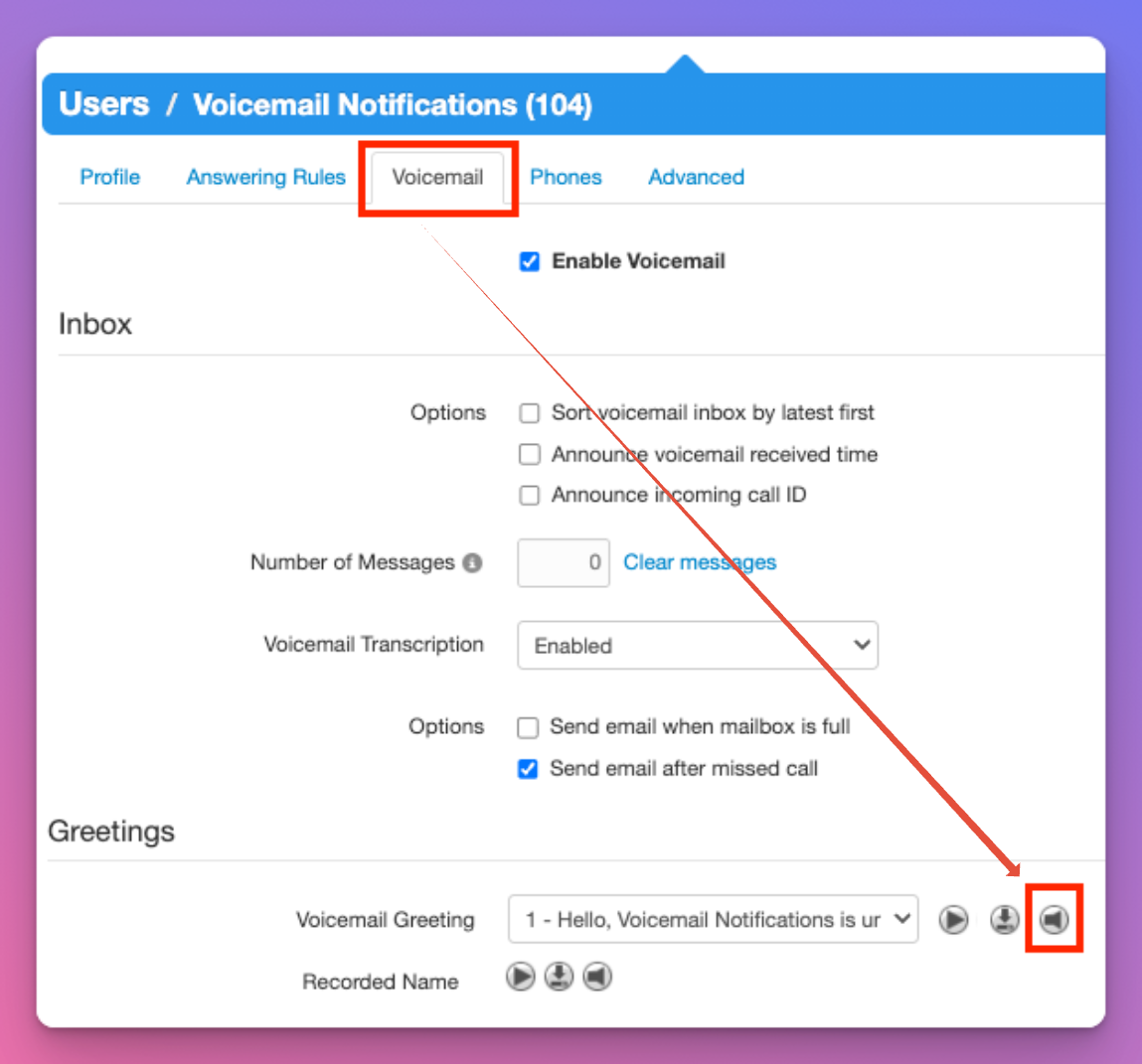
1. Log into your manager portal and select user in your top navigation.
2. Select the user that is assigned as your Voicemail Notifications.
3. Select Voicemail on the users sub-menu.
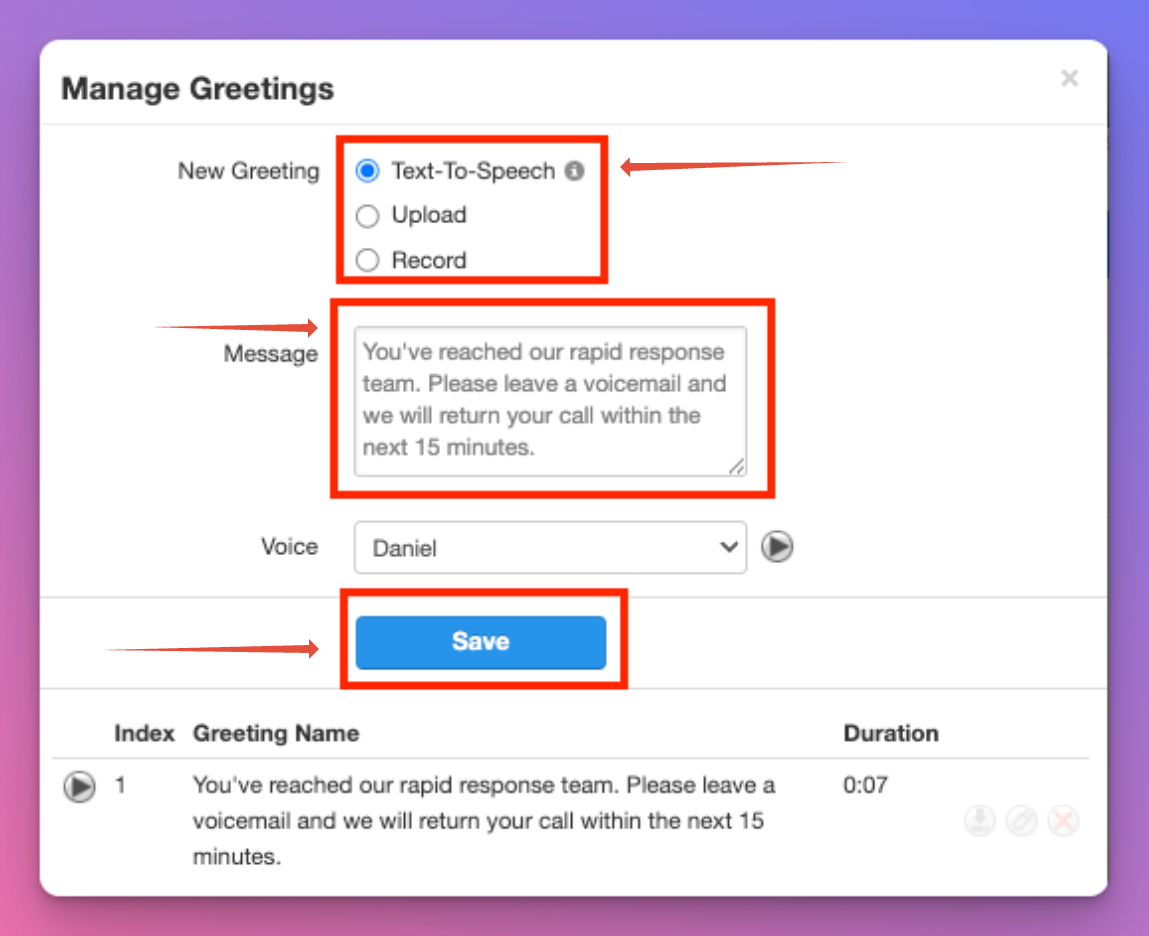
4. Scroll down to 'Greetings and select the far right 'Manage' icon.
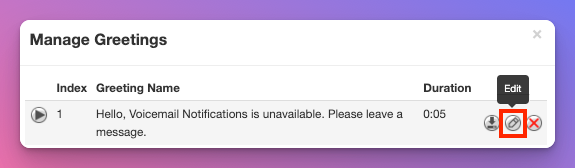
5. Select the 'Edit' button on the right side of the greeting.
6. Select the text to speech, upload or record options to create your voicemail greeting.
7. Record your greeting and select 'Save.'