
Create Holiday Timeframes
Would you like to schedule specific holiday dates that you are closed and route calls to a different greeting or auto attendant?
2026 BC Stat Holiday Schedule
For your reference, here is the holiday schedule for British Columbia for 2026. You can proactively create a Holiday timeframe for the entire year.
| New Years Day | January 1 |
| Family Day | February 17 |
| Good Friday | April 18 |
| Victoria Day | May 19 |
| Canada Day | July 1 |
| B.C. Day | August 4 |
| Labour Day | September 1 |
| Truth & Reconciliation | September 30 |
| Thanksgiving Day | October 13 |
| Remembrance Day | November 11 |
| Christmas Day | December 25 |
Create the Holiday Time Frame
1. Log into your manager portal
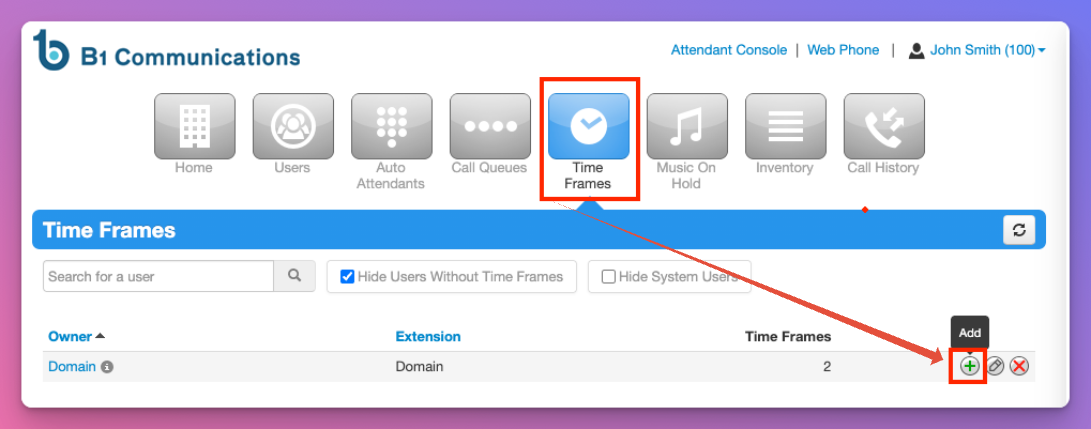
2. Select Time Frame on the top navigation
3. Select the + add button on the right side of the screen.
Time Frame Options
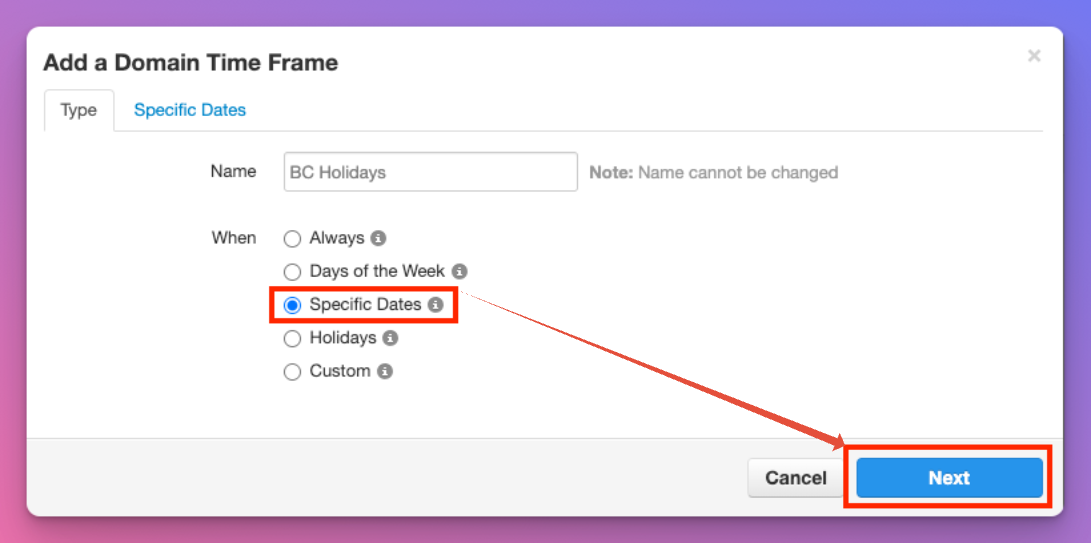
Although the system has a built in 'holidays' schedule picker, we suggest using Specific Dates instead. It gives you more flexibility to select other days beyond specific holidays. For example, if you close between Christmas and New years.
4. Name the time frame. Something like Holidays or BC Stats
5. Select Next.
6. Select the date you wish to close for the Holiday
7. By default, the time will be for 24 hours. However you can schedule multiple days or specific times as needed.
8. Select the blue + button beside the time.
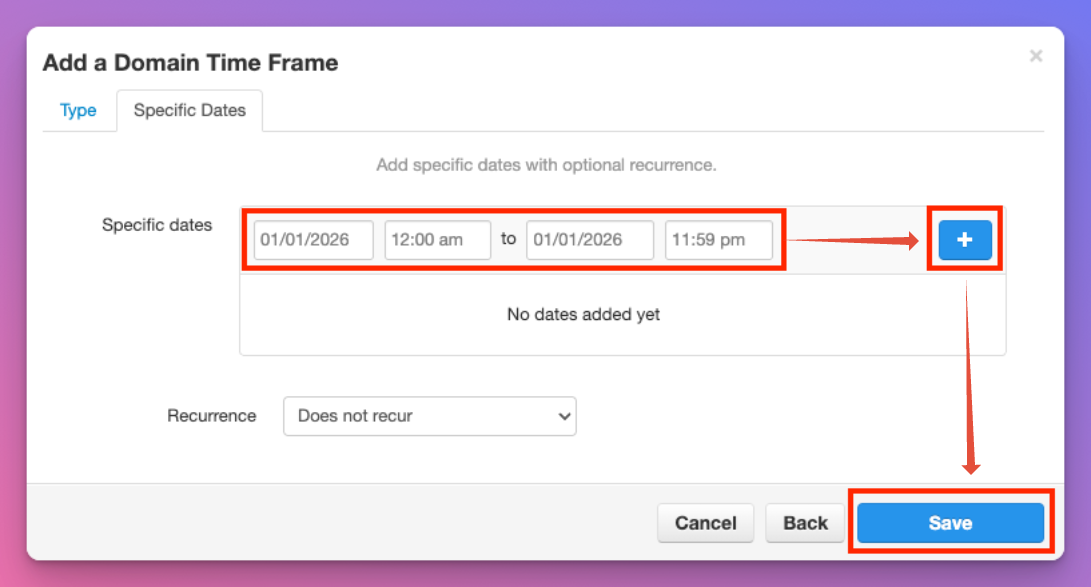
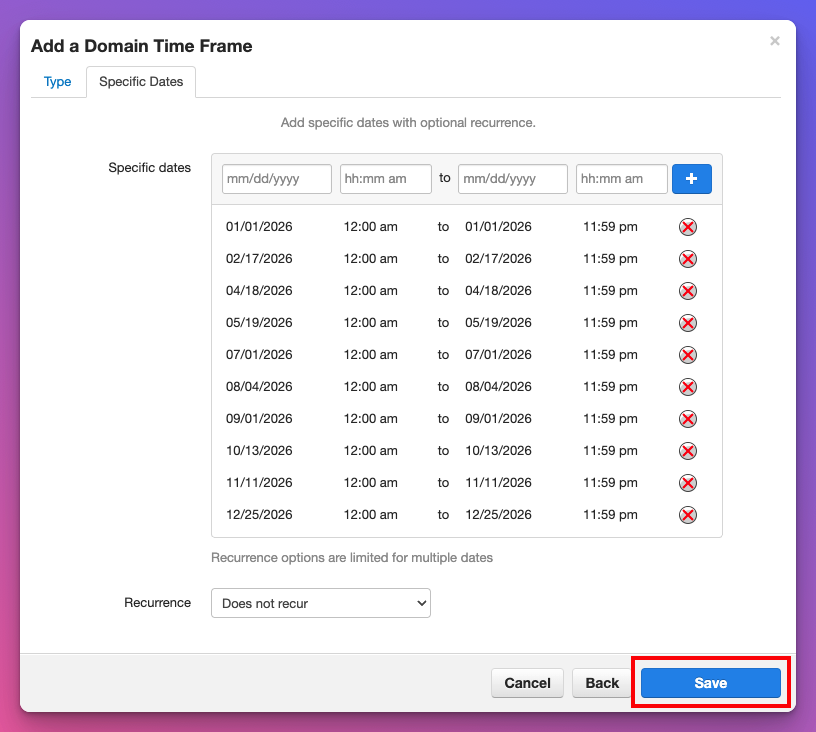
9. Add as many dates as you would like. Then select Save.
Assign Your Holiday Time Frame
Now that you have created the holiday timeframe, you must assign it to a number. Until then, it won't do anything.
Follow Step 2 in our Company Time Frame Guide.