Setup & Manage Telephone Number Routing
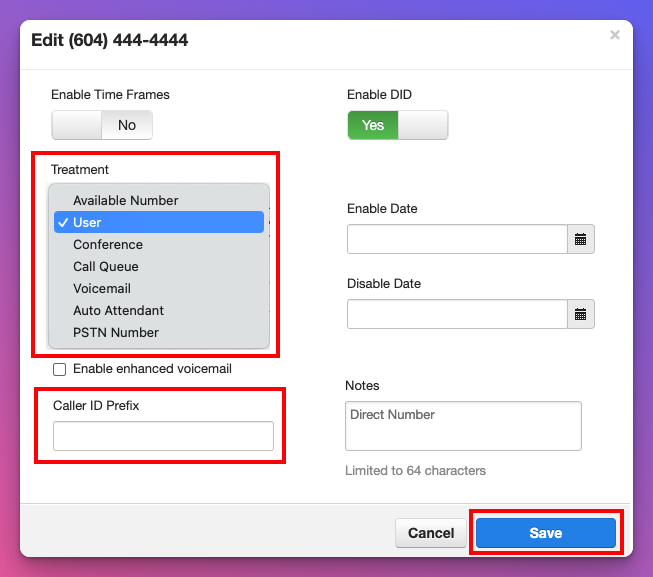
You can route calls to a variety of different places. In our system, we call this Treatment.
| Available Number | Callers will hear: "The number you are calling is not assigned. |
| User | Send callers to users and ring groups. |
| Conference | Send callers to a conference line. |
| Call Queue | Send Callers to a call queue. |
| Voicemail | Send callers directly to voicemail. |
| Auto Attendant | Send callers to an auto-attendant. |
| PSTN Number | 'Public Switched Telephone Number' sends callers to an outside number. |
Schedule Call Routing
You can use timeframes to create a schedule for different call routing based on the time of day/day of the week. You can also create timeframes for holidays. and route calls accordingly. (For example, creating an open auto-attendant, and closed auto-attendant)
Creating & Managing Telephone Number Routing
1. Log into your manager portal
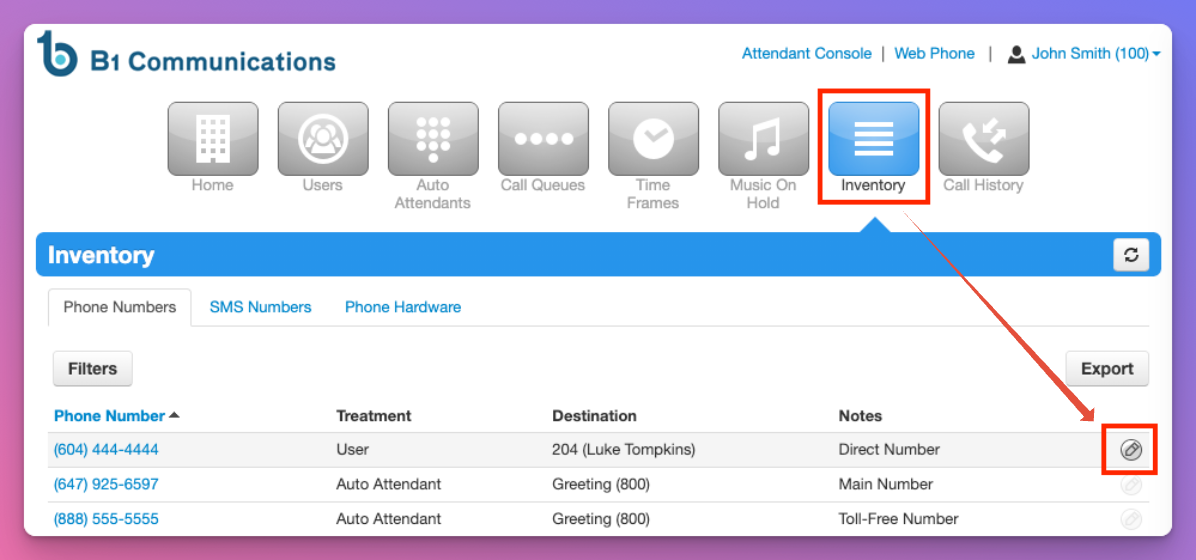
2. Select 'Inventory' on the right side of the navigation bar
3. Select the pencil icon beside the number you wish to manage.
4. On the left side of your screen, select 'Treatment' and enter the place you want to route calls.
5. (Optional) Caller ID Prefix allows you to include a notification that will show up on staff members phones during inbound calls. Right beside Call Display. For example: 'Direct' or 'Main.'
6. Select 'Save.'