Replacing an existing user
When an employee leaves and you wish to update the name of the phone, voicemail, etc with your new employee or new hire. Wiping out all the old details. deleting the user name and details of the old employee.
Considerations
When replacing an employee or updating an extension name, there are a few things to verify. Including any customizations an employee may have done like call forwarding, voicemail greeting, call display, etc.
Replacing a user
This is a simple process that will completely recycle your user. Ready for a new employee.
1. Log into your manager portal.
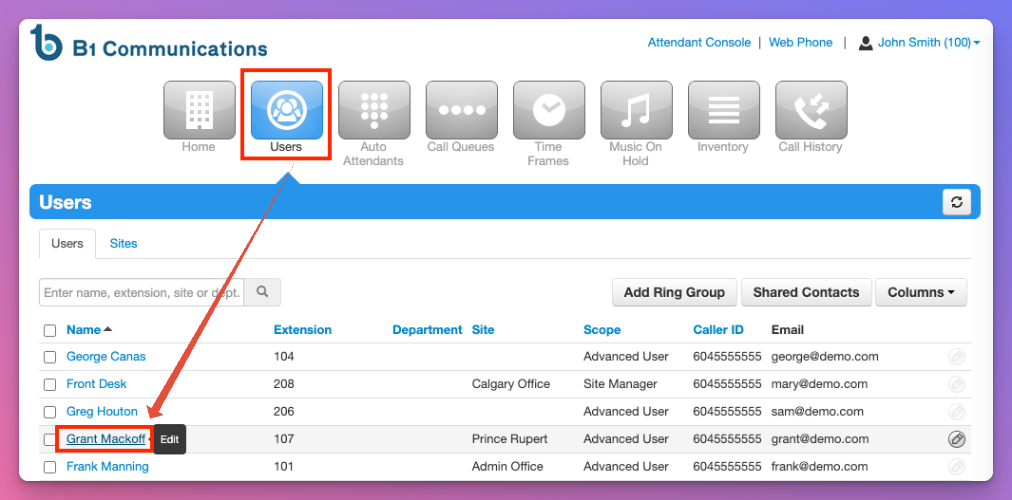
2. Select 'Users' on the top navigation.
3. Select the user you wish to reset or recycle.
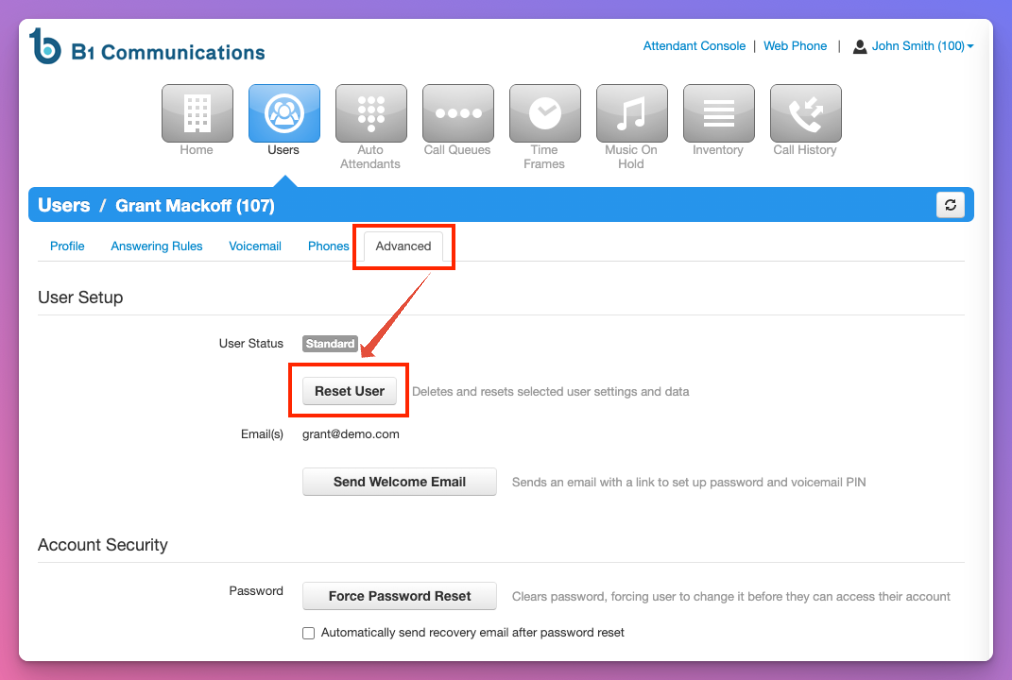
4.In the user sub-menu, select 'Advanced.'
5. Select 'Reset User.'
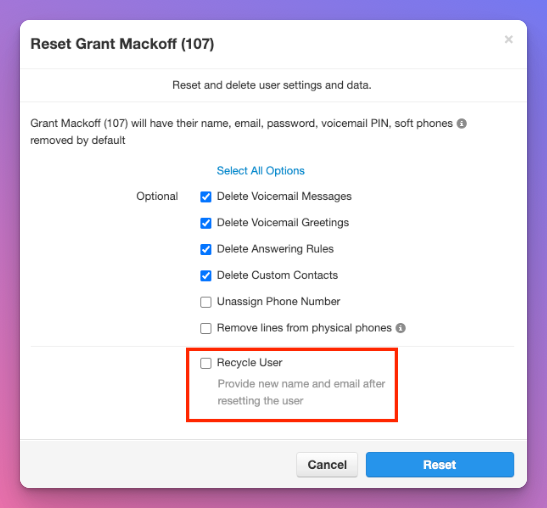
6. With the popup, you'll have a number of different options to select and unselect.
7. If you are deleting the user details but do NOT have a replacement employee/details yet, you can simply save with the default selected options.
8. If you however, have an employee that you wish to setup right away, select 'Recycle User'
9. Select 'Reset'
10. The next page will confirm you wish to reset the user.
Deleting User Voicemail Messages
If you wish to check the voicemail messages prior to deleting them. Access Voicemail Messages of Users.
11. If you are sure, select 'reset'
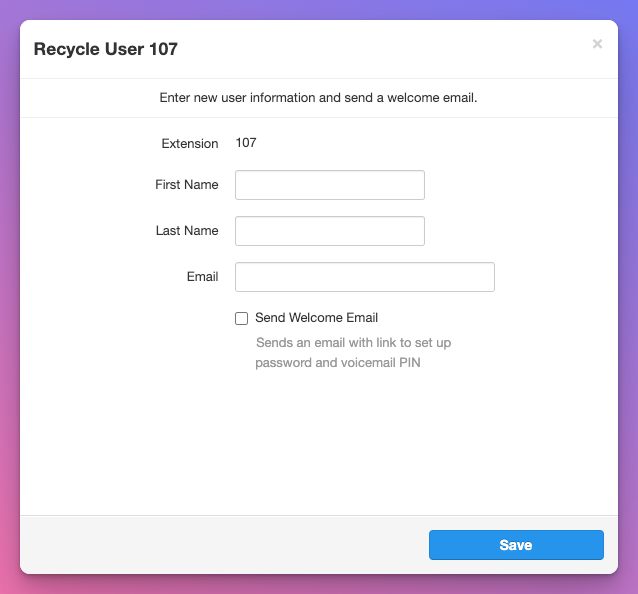
12. Enter the first name, last name, and email address of the new employee.
13. Checkmark "Send Welcome Email." This will send a welcome email inviting your new employee to the online portal to update and manage their account.