
Create & Manage Ring Groups
Often called Call Groups or Hunt Groups. Callers will be distributed toward several staff members at the same time, or in sequence.
What is the difference between Ring Groups and Call Queues?
We recommend Ring Groups for their ease of use, setup, and ongoing management. Call Queues are great for high volume, complex needs with announcements and agent login/logout options.
Ring Groups | Call Queue |
|---|---|
| Direct Ring Perfect for lower call volume. There is no hold option and callers go directly to your staff. | Wait on Hold Designed for high call volume where callers need to wait on-hold for your staff. |
| Ring All or Delayed Set all phones phones to ring at the same time or set delays to ring select staff first, second, etc. | Advanced Call Routing Call queues have 5 call routing options to choose from. Including ring all, round-robin & hunt groups. |
| Ringing Callers will hear ringing as they wait to be connected to your staff members. | Hold Music & Announcements Callers will hear hold music, and you can create intro greetings & Hold prompts as they wait. |
| Answer Rules Ring groups will not honour staff answer rules. They won't ring webphones, mobile app or call forwarding. You must include each phone you want to ring. i.e. 101m for mobile, 101wp for webphone. | Agents vs Phones In call queues, you can add new agents under two categories. User includes their answer rules or select 'Phone' which will go directly to that individual phones. |
| Limited Options Ring Groups are simple, straight forward tools to include several staff members in a hunt group or ring group at the same time. | Advanced Options With call queues, you have many options around call back, timeouts, volume of callers, agent login, logout, etc. |
Create a new Ring Group
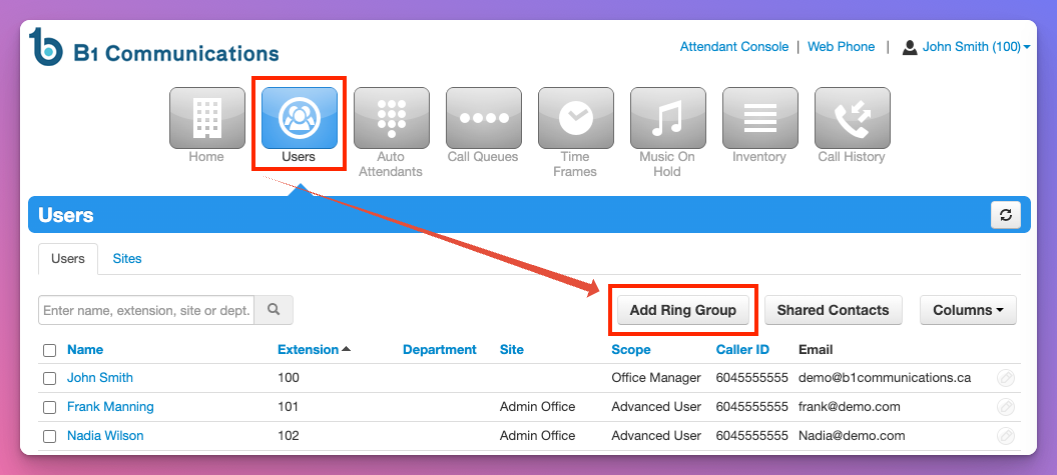
1. Log into your manager portal
2. Select Users on the top of your menu bar
3. Select 'Add Ring Group' button on the right side
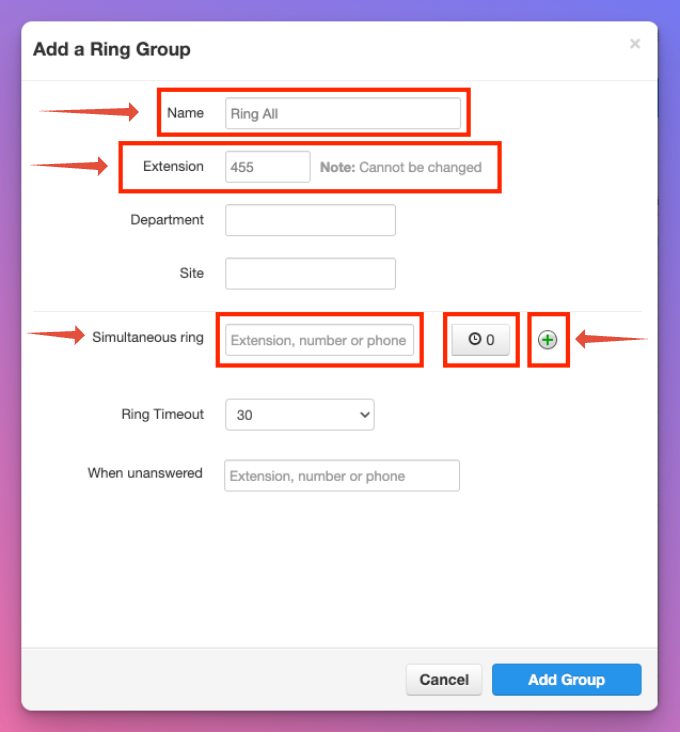
 4. Name your ring group. Something like 'Front Desk' 'Reception' or 'Ring All.'
5. Extension # - We recommend using the 400 or 500 bank. It must be unique and cannot be adjusted.
6. Simultaneous Ring - Type the extension number or external number you wish to include. If you want a users webphone or mobile app to ring, you must include the extension number, followed by 'wp' for webphone and 'm' for mobile. For example 100wp and 100m.
7. Select the green + icon if you wish to include multiple numbers.
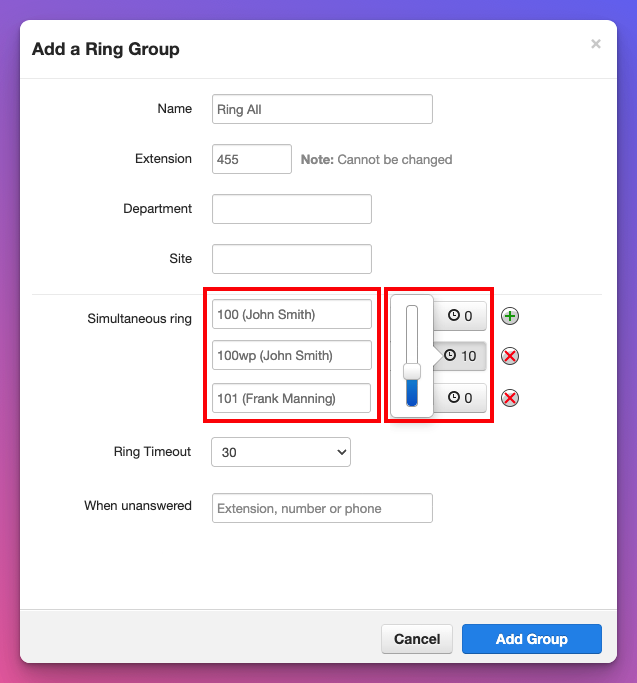
8. (Optional) If you wish to setup delayed ringing for select users. Select the clock button beside the users name, and setup a delay. We recommend using 10 seconds for the 2nd group and 20 for the 3rd group.
Delay Ringing Notice
You must set a delay for each user. In the below example, '100 (John Smith)' and '101 (Frank Manning)' will ring simultaneously and '101wp (John Smith)' is delayed by 10 seconds.
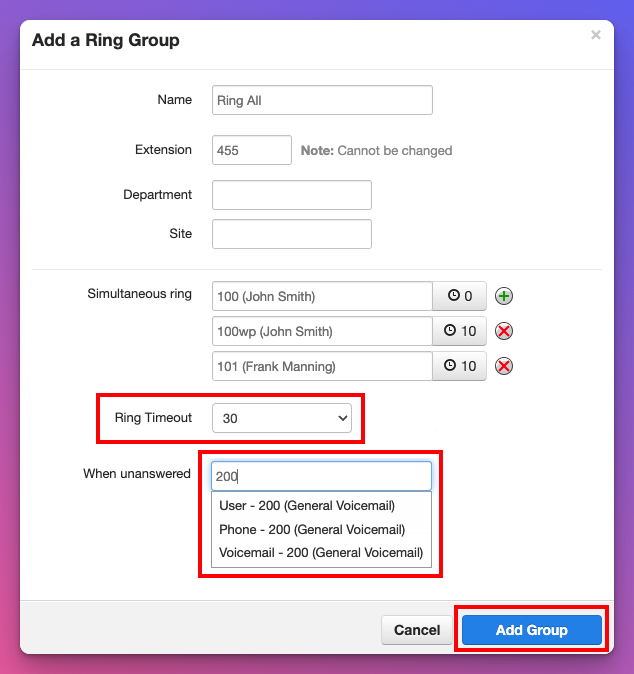
9. Ring Timeout is the period of time your ring group will ring before it goes to Voicemail. Consider this when creating delays. For example, a user delay of 25 second will only ring for 5 seconds if your Ring Timeout is 30 seconds.
10. 'When Unanswered' allows you to direct callers somewhere else in the event of no answer. You can direct calls to a delayed auto attendant, a user, or a voicemail. In this example, when you type the extension number, you have 3 options and you can select 'Voicemail - 200 General Voicemail.'
11. Select Add Group
12. You can now route calls to your ring group from your telephone number or auto attendant.
sdfds