
Using Call Park
Call park is essentially a 'public hold.' Where callers will be on-hold listening to music, and calls can be retrieved from other users.
We Recommend The Park Key For Deskphone Users Only
Virtual users like webphone and Mobile App Users have reported intermittent issues with the park key services, so we recommend transferring calls directly.
What is the difference between "Park" and "Hold"
When you place a call on hold, only your phone can retrieve that call. This ensures privacy and is different from old phone systems that allowed anyone to retrieve those callers.
Park on the other hand is the modern version of that old hold system. Calls can be retrieved from any of your co-workers and is a great alternative to transferring a call directly to someone.
Step 1: Programming The Park Queue
There are two components to programming a park key. The first is creating the park slot in the Call Queue system, the second is to program the button on the phones.
Creating The Park Queue
1. Log into your manager Portal.
2. Select the Call Queue tab.
3. Select 'Add Call Queue.'
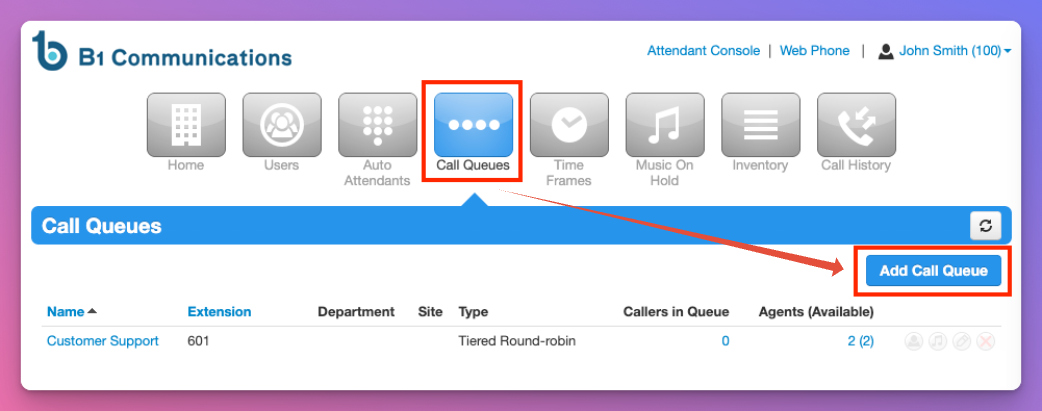
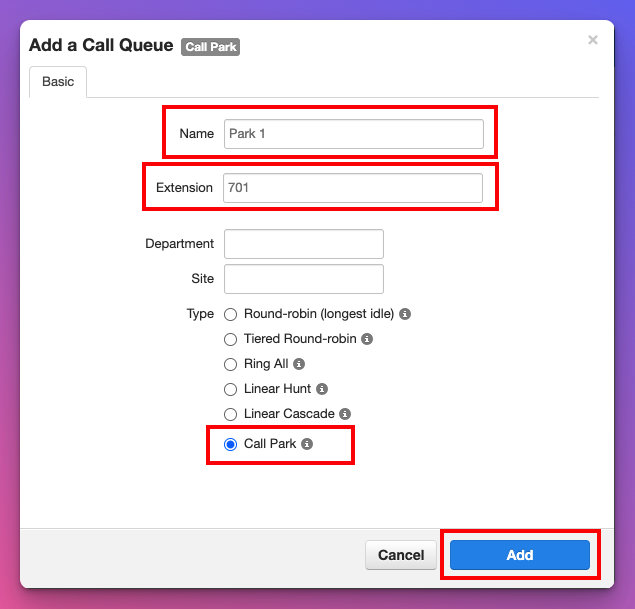
4. Name the new queue "Park" or if you intend to create multiple parks. Name them "Park 1" "Park 2" etc.
5. When creating an extension, you MUST use 701-749. If you use any other extension number, the park key will NOT work.
6. Under Type, select 'Call Park'
7. Select Add to create the Call Park.
Step 2: Adding The Park Key To Your Desk Phones
We recommend creating a phone template to manage your park keys as it's important every staff members desk phone has the same Park button in-order to utilize the Call Park feature.
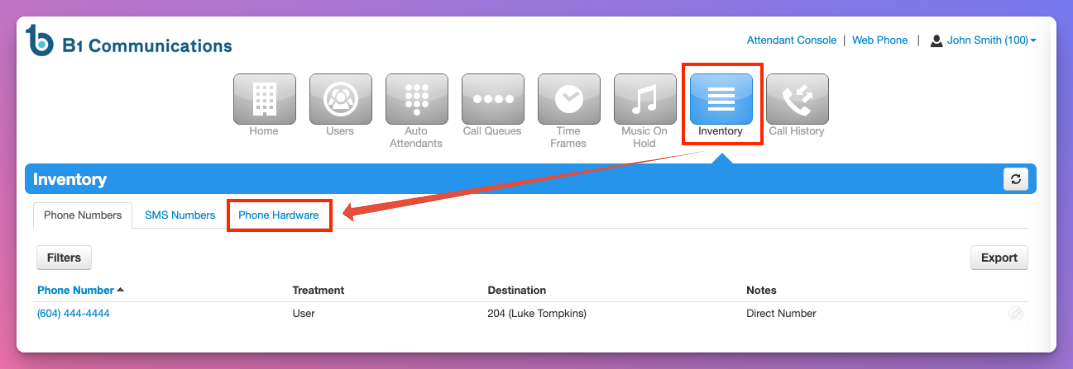
1. Select the Inventory Tab
2. Select "Hardware" on the sub-menu tab.
3. Select the 'gear' icon beside the phone you wish to edit.
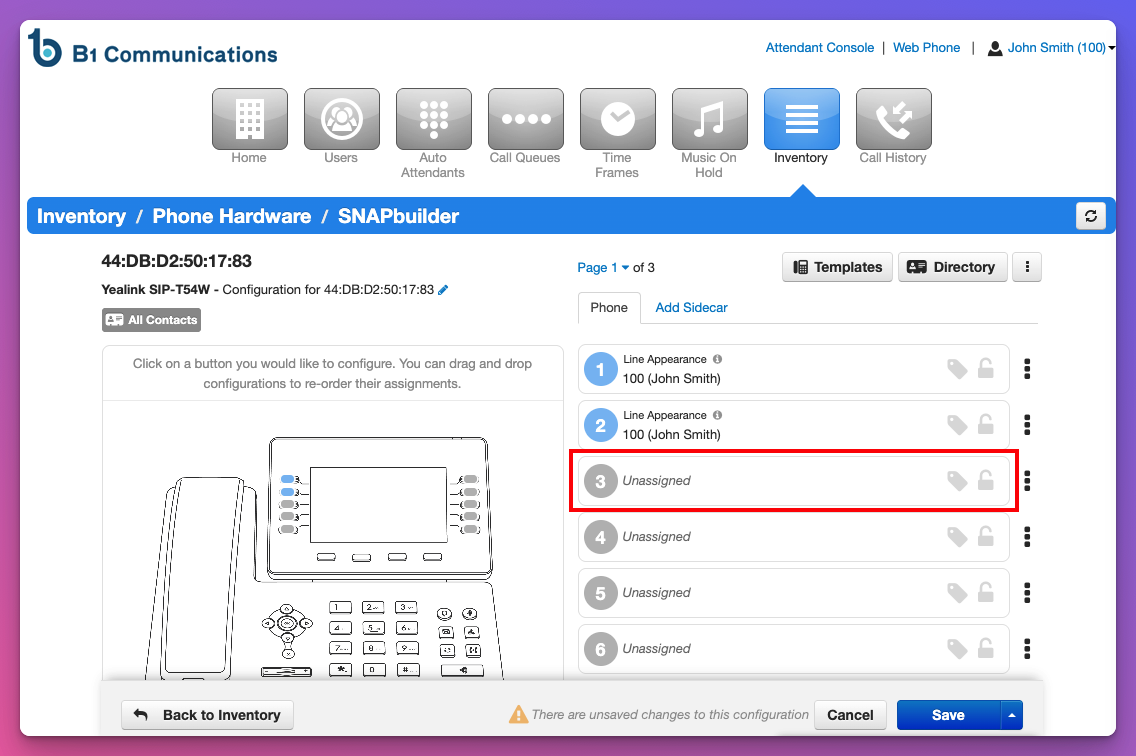
4. The first two keys are 'line key's for each extension, do not touch those.
5. We recommend using the 3rd key below the line keys for Park 1 and the 4th key for Park 2 if required.
6. If this key has something programmed, simply select the 3 vertical dots and select "Clear Button'
7. Select the unassigned space and a popup will give you options.
8. Select the dropdown menu 'Select a Feature'
9. Select 'Park Key'
10. Under 'Enter a Call Park' type the name or extension number you used for your Park Queue.
11. Under Custom Label, name it "Park" or 'Park 1'
12. Beside the Save button, you'll want to select the up arrow, and choose "Save and Resync"'
You are now complete
Ensure all phones in your office have the park key and we recommend testing to verify that everything is working properly.