Create & Manage Call Queues
Call queues are great for more complex call routing and heavy call volume situations. The alternative to a call queue would be a Ring Group which has less features and is easier to setup.
- Create a New Call Queue
- Pre-Queue Options
- In-Queue Options
- Adding & Removing Agents
- On Hold Music & Messages
What is the difference between Ring Groups and Call Queues?
We recommend Call Queues for a more advanced situation that includes mobile apps, webphones, etc. Call Queues are also great for high call volume, call introductions, hold music, announcements and agent login/logout options.
Ring Groups | Call Queue |
|---|---|
| Direct Ring Perfect for lower call volume. There is no hold option and callers go directly to your staff. | Wait on Hold Designed for high call volume where callers need to wait on-hold for your staff. |
| Ring All or Delayed Set all phones phones to ring at the same time or set delays to ring select staff first, second, etc. | Advanced Call Routing Call queues have 5 call routing options to choose from. Including ring all, round-robin & hunt groups. |
| Ringing Callers will hear ringing as they wait to be connected to your staff members. | Hold Music & Announcements Callers will hear hold music, and you can create intro greetings & Hold prompts as they wait. |
| Answer Rules Ring groups will not honour staff answer rules. They won't ring webphones, mobile app or call forwarding. You must include each phone you want to ring. i.e. 101m for mobile, 101wp for webphone. | Agents vs Phones In call queues, you can add new agents under two categories. User includes their answer rules or select 'Phone' which will go directly to that individual phones. |
| Limited Options Ring Groups are simple, straight forward tools to include several staff members in a hunt group or ring group at the same time. | Advanced Options With call queues, you have many options around call back, timeouts, volume of callers, agent login, logout, etc. |
Create a New Call Queue
1. Log into your manager portal
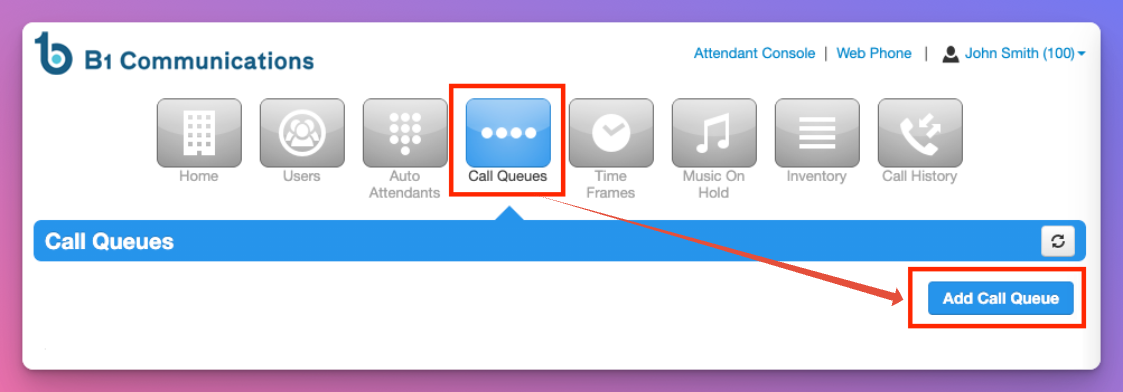
2. Select Call Queues on your menu bar
3. Select 'Add Call Queue"
4. Enter the name of the call queue. Something like "Sales Team" or "Ring All.'
5. Create a unique extension number. We recommend using the 600 bank for call queues.
6. Select the Type of call queue.
| Round-Robin (Longest Idle) | Calls will be sent to the next available agent who has been idle the longest. |
| Tiered Round-Robin | Calls will be sent to the next available agent with escalating tiers that is set at the agent edit page. |
| Ring All | As described. Calls will simultaneously ring all available agents until someone answers. Perfect for smaller offices. |
| Linear Hunt | Calls will be sent to the next available agent in a predefined order that is managed on the agent edit page. |
| Linear Cascade | Calls will be sent to groups of available agents as defined in the agent edit page. |
| Call Park | Call Park is used as a 'public hold' is not technically a call queue. Learn More. |
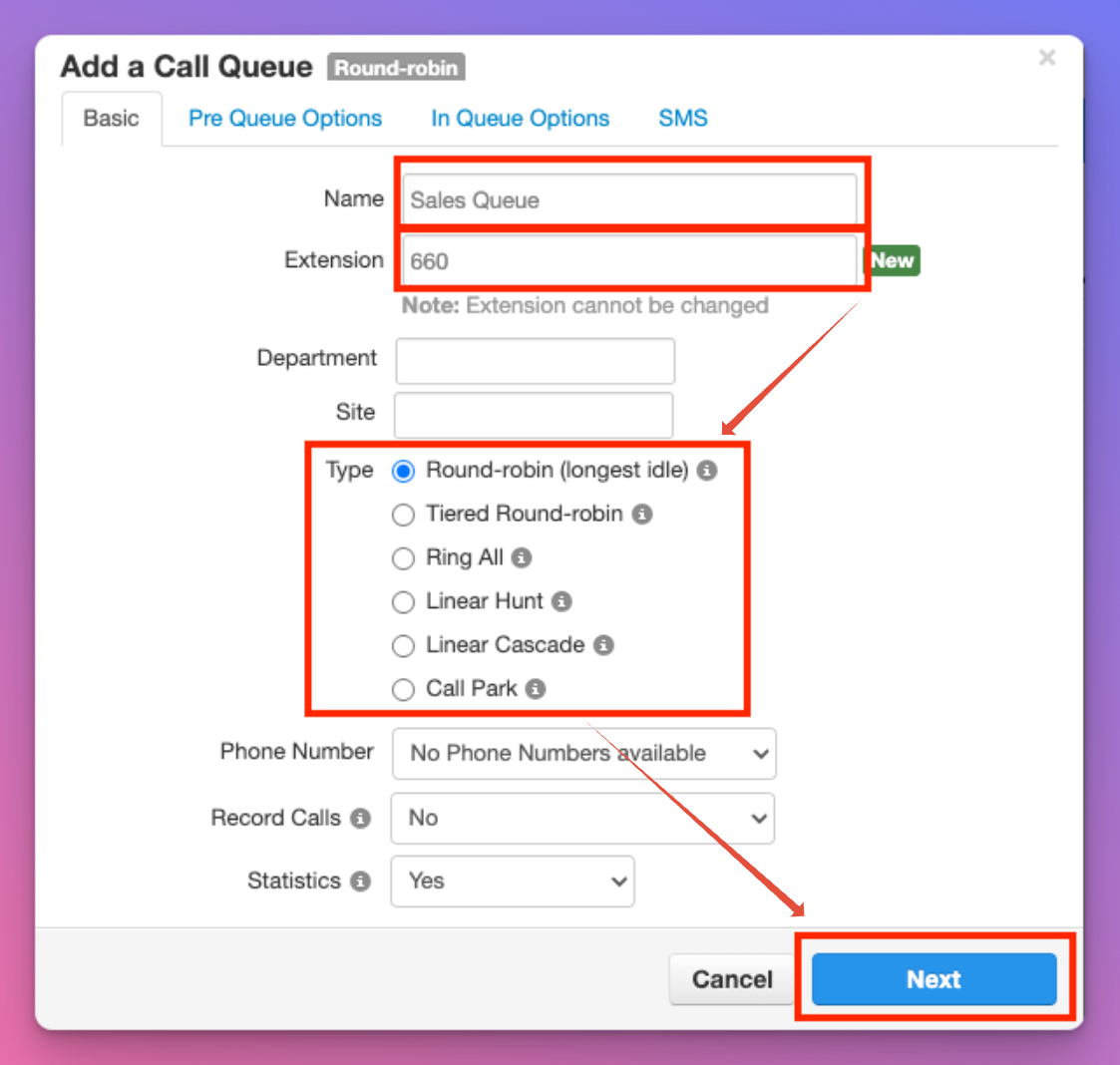
7. There are other options like call recording of call queues, and call statistic that can be used to generate reports.
Pre-Queue Options
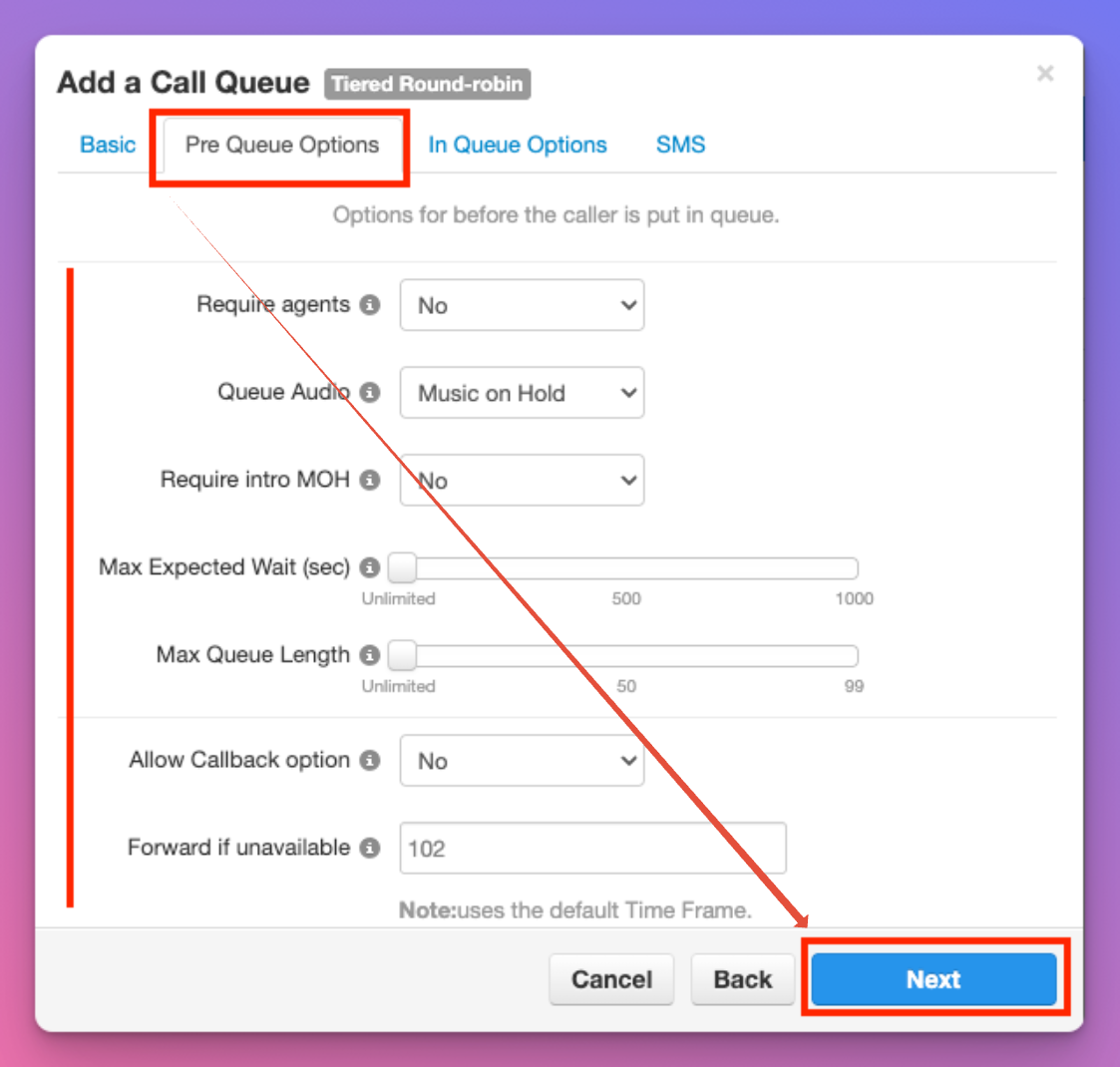
Before your caller enters the queue, there are some options you can enable/disable.
| Require Agents | If you are going to be setting up agent login/logout for availability, this feature ensures that a minimum of one agent is available to take calls before they callers will be accepted. |
| Queue Audio | You have two options. Callers will hear ringing, or 'Music" as they wait on-hold. We have default hold music - Alternatively, you can upload your own licensed music (see below for details) |
| Require Intro MOH | MOH is your optional call queue introduction. For example "You've reached the sales team." Selecting "Yes' will ensure all callers will hear the intro greeting before connecting with an available agent. |
| Max Expected Wait (Sec) | This limits new callers from entering the queue if the expected wait time exceeds this limit of time in seconds. |
| Max Queue Length | This limits new callers from entering the queue if you exceed a selected number of callers. For example, maximum of 10 callers waiting at a time. |
| Allow Call Back Option | This feature is the famous and useful call back system: 'Instead of waiting on-hold, we will call you back when an agent is available." |
| Forward If Unavailable | If you require agents, or have any limits when entering the call queue, we need to identify a location to send callers when the call queue is unavailable. Most often, this is a voicemail extension. When you enter the extension, it will give you the option to ring the user, phone, or voicemail directly. |
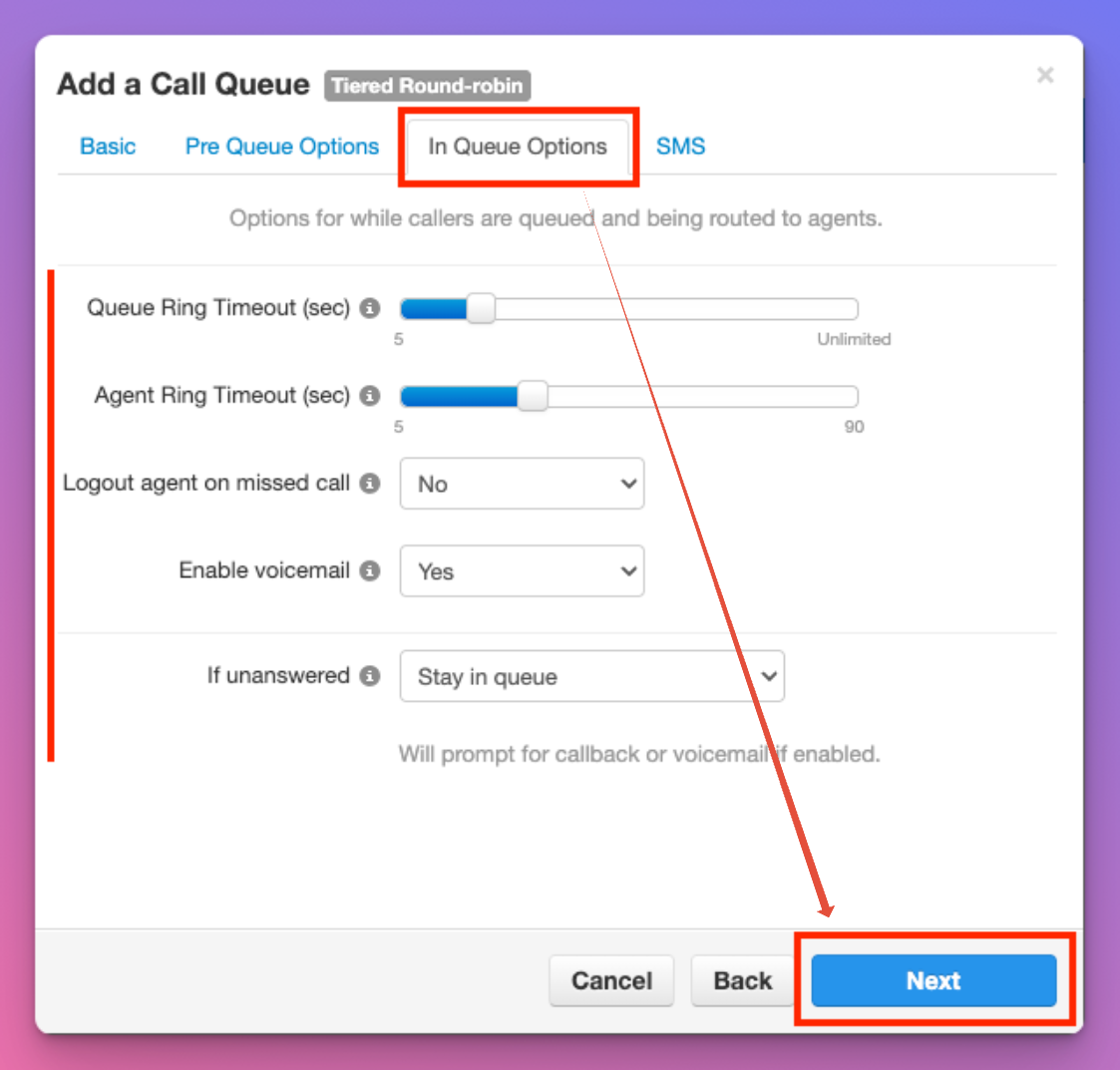
In-Queue Options
As callers wait for an agent to answer their calls, you have several options you can manage.
| Queue Ring Timeout (Sec) | How long would you like the queue to call your agents before sending callers to the 'If Unanswered' option. |
| Agent Ring Timeout (Sec) | How long should each agent's phone ring before the system moves to the next agent. (For RIng All Queues: The caller would be sent to 'if unanswered' after this period of time if no agent answers) |
| Logout agent after missed call | We recommend leaving this feature as 'no' as calls are sometimes missed for valid reasons and we don't want your staff to assume they are online when the system has taken them offline. |
| Enable Voicemail | We recommend not using the Voicemail of your call queue and instead sending callers to alternative voicemail boxes. |
| If Unanswered You have 3 options | Stay in the queue: This will begin the call queue process again and attempt each available agent. Forward to Destination: This is what we recommend. Sending callers to a staff member, or voicemail box or your choosing. Send to Voicemail: This will send the caller to the Call Queue Voicemail. You will need to go to users and find the call queue to update the voicemail greeting, and the email used for notification if you want to use this feature. |
SMS
We presently do not support the SMS features within call queues. Stay tuned for updates as we expand our sms functionality.
Adding & Removing Agents
1. Select the agents icon on the right side of the call queue you wish to update.
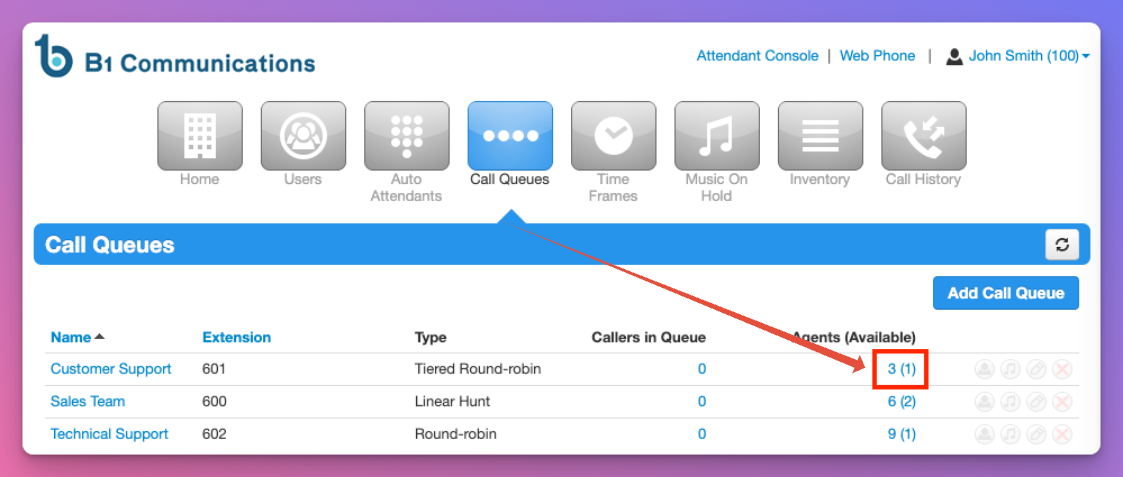
2. To remove an agent, simply select the X icon beside their name.
3. To add an agent, simply select 'add agent'
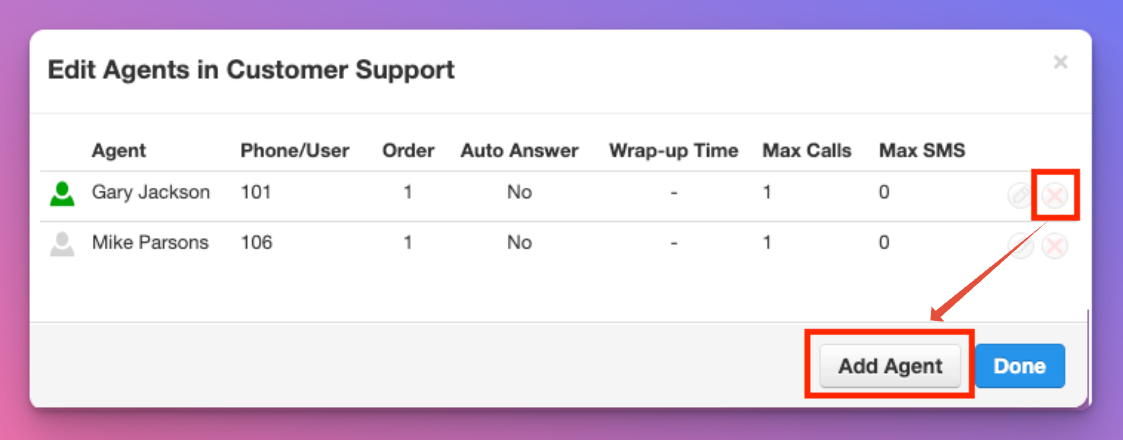
4. There are two important options when adding a new agent to any call queue.
| User | Phone |
| The call queue will honour the users Answer Rules. This means that call queues will ring the phones/apps that are set at the user profile. | The call queue will call the exact phone you enter. For example: 105 will only ring the desk phone, 105m will ring the mobile app and 105wp will ring the webphone. You can also use 'phone' for external numbers. |
You also have several other options that you can adjust:
| Status | Online/Offline is the status of the agent and if they will receive calls or not. |
| Wrap up time (Sec) | The system won't send another call until after the wrap-up time that you set. |
| Max Simultaneous Calls | Would you like your agents to receive multiple calls at a time? |
| Max SMS Sessions | This is presently not activated on our system. |
| Order in Linear Hunt | This is only functional when the call queue is set to the type 'linear hunt' or "linear cascade' as a group. |
| Queue priority for agents | This is only functional when the call queue is set to the type 'linear hunt' or "linear cascade' and impacts the agent level. |
| Request Confirmation | When agents answer call queue calls, they will hear a system greeting saying 'to accept this call, press 1." |
| Auto Answer | We don't recommend this feature as it's more designed for high-volume call centre agents and will automatically connect the calls. |
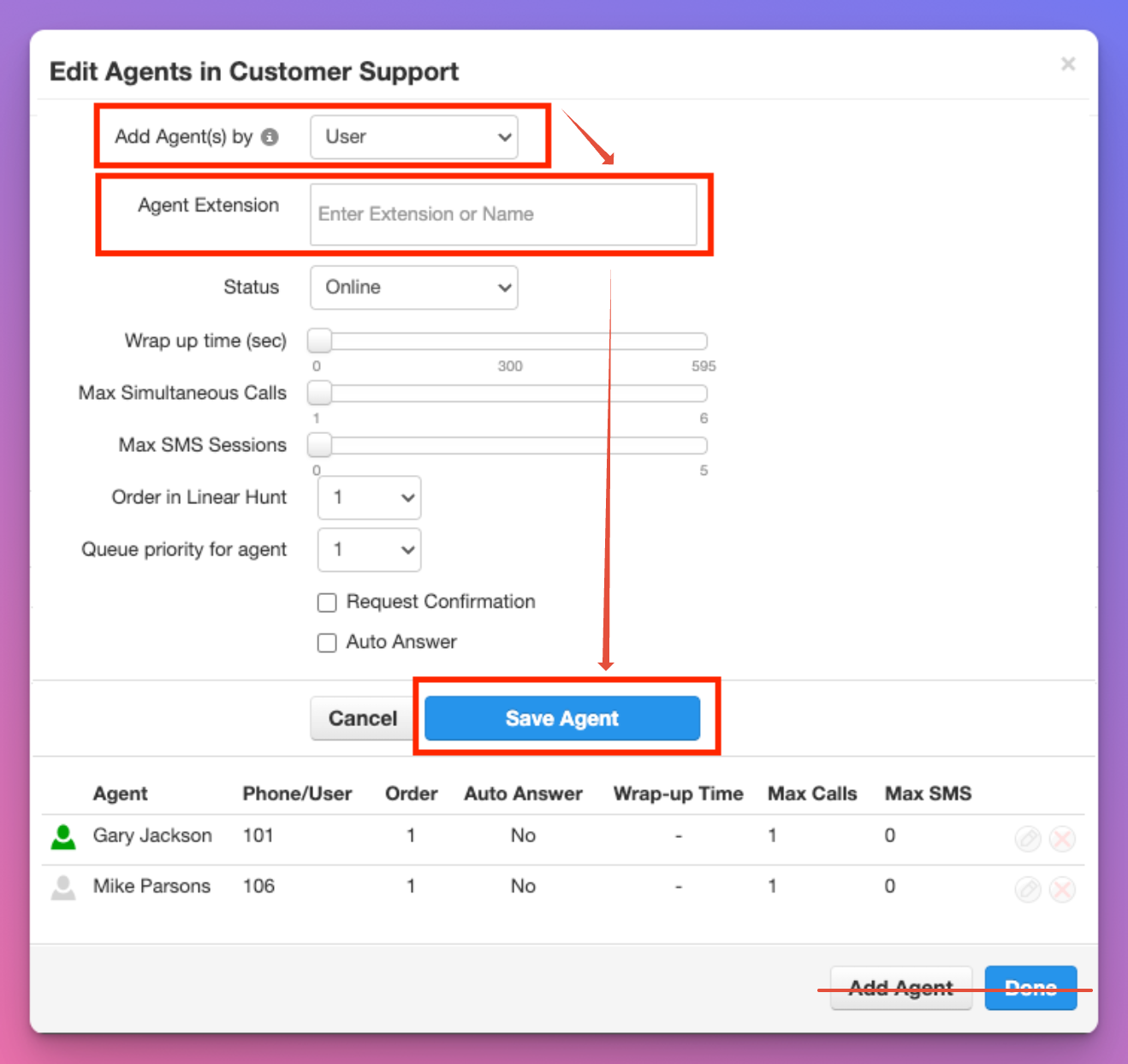
5. Select 'Save Agent' before selecting the below buttons add agent or done as those buttons will not save your new agent.
On Hold Music & Messages
1. Select the music icon beside the call queue you would like to manage.
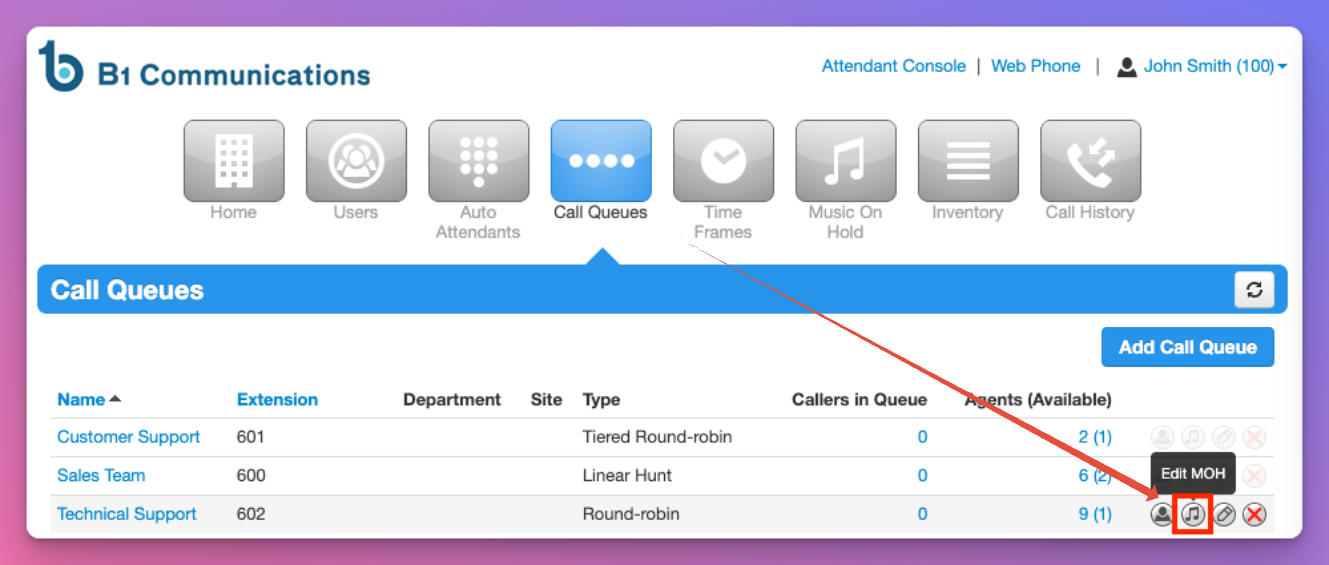
2. The system has hold music, but you can upload your own licensed music. You are legally responsible for ensuring that any music on your phone system is licensed and legal.
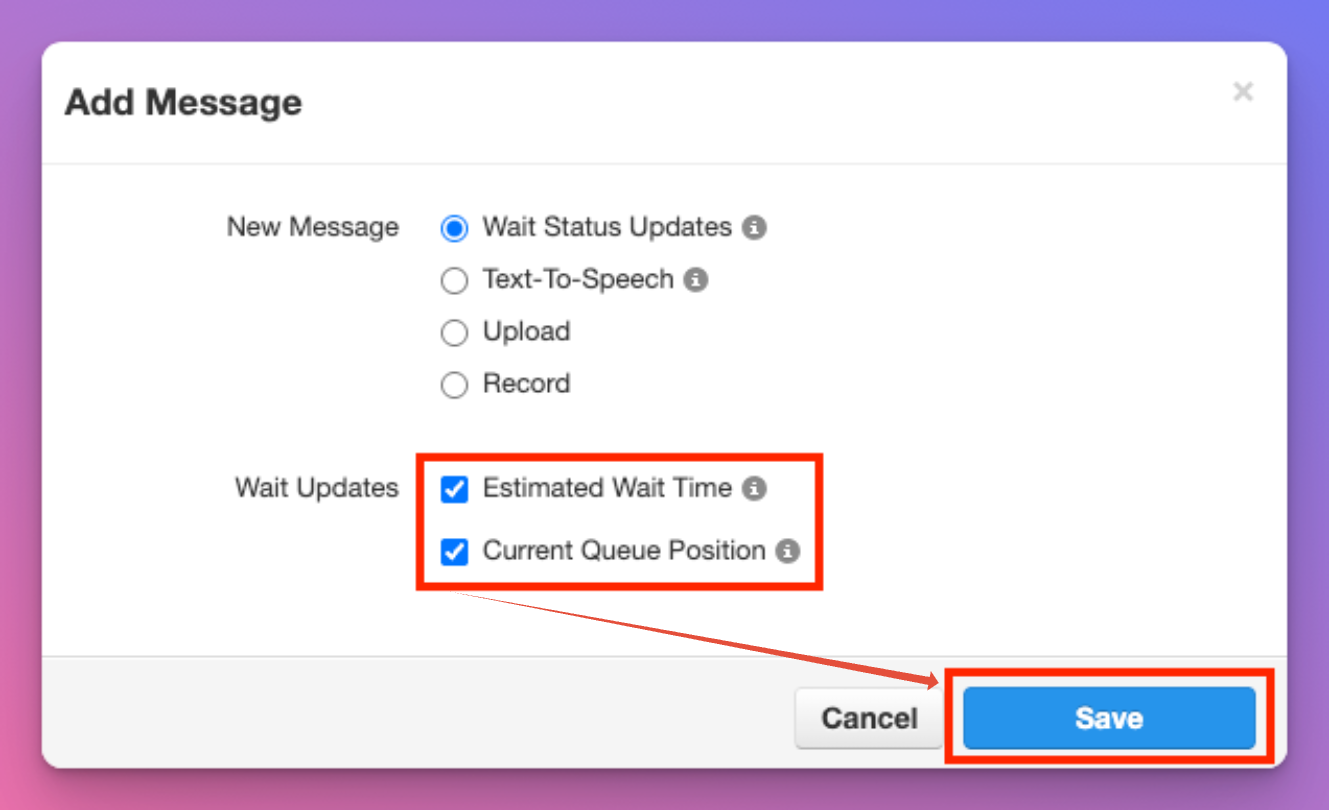
3. You have "Add Introduction" when callers enter the call queue, and "Add Message" for hold messages between songs.
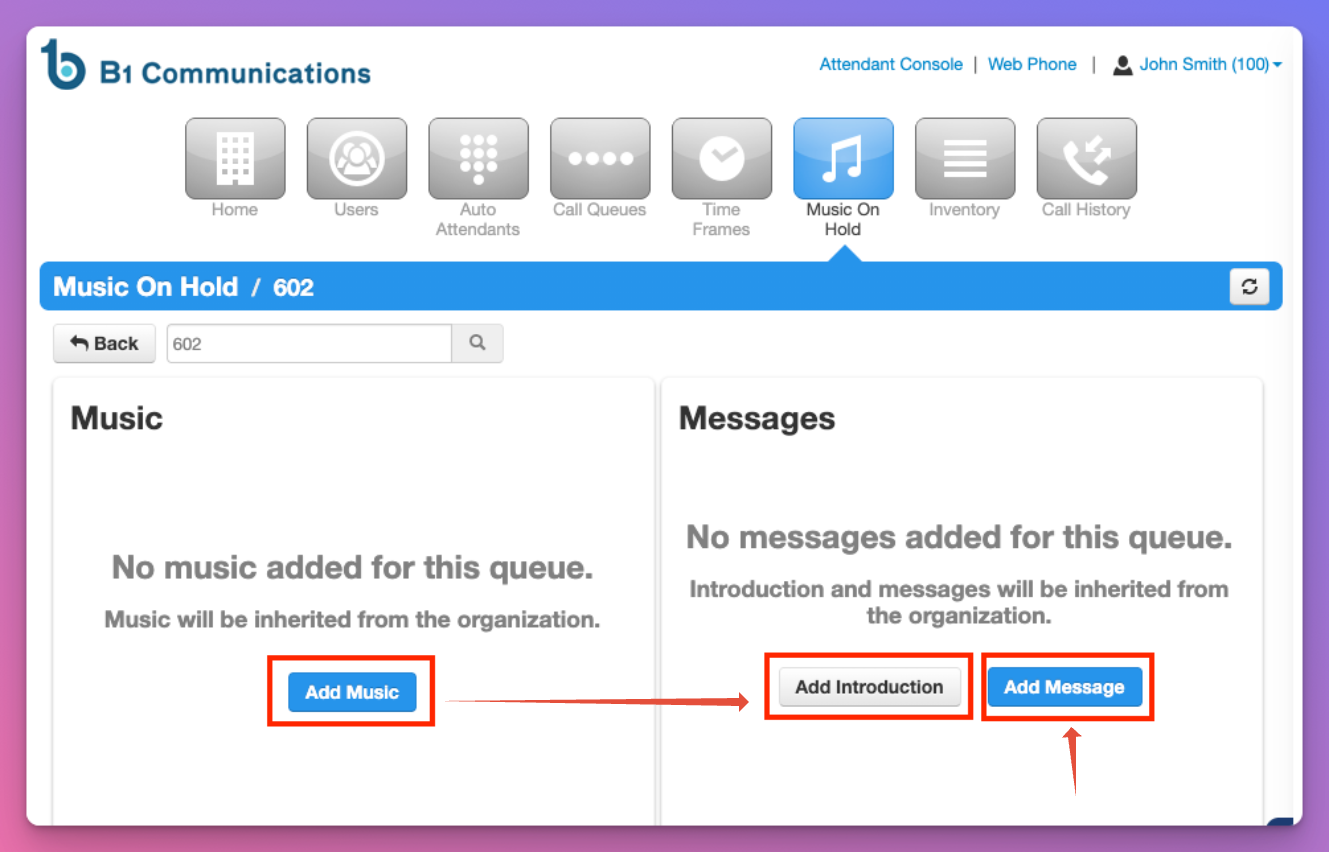
4. When you add an Introduction or Message, you can upload, Record, or use our Text to Speech AI Voices.
5. For Messages, you also have "Wait Status Updates" like Estimated Wait Times & Current Queue positions. These are only recommended for high volume call queues.