
Creating Company Hours or Weekly Schedules
This is an advanced step, so feel free to Contact your account manager or our support team for assistance.
Closed Timeframe
You won't have to create a closed time frame. There is a system 'default' which covers all hours outside of your scheduled time.
Skip too: STEP 2: Assign a time frame to a telephone number.
Create Your Time Frame
1. Log into your manager portal.
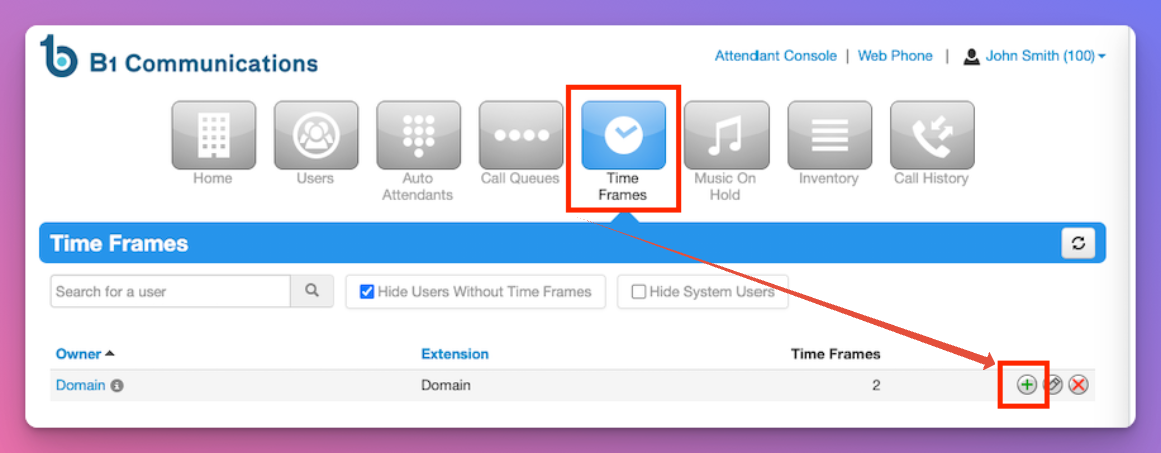
2. Select Timeframe from your top navigation
3. Select the green plus beside Domain.
4. You'll want to name your Time Frame. Something like 'Office Hours' or "Richmond Location."
5. Select Days of the Week.
6. Select "Next"
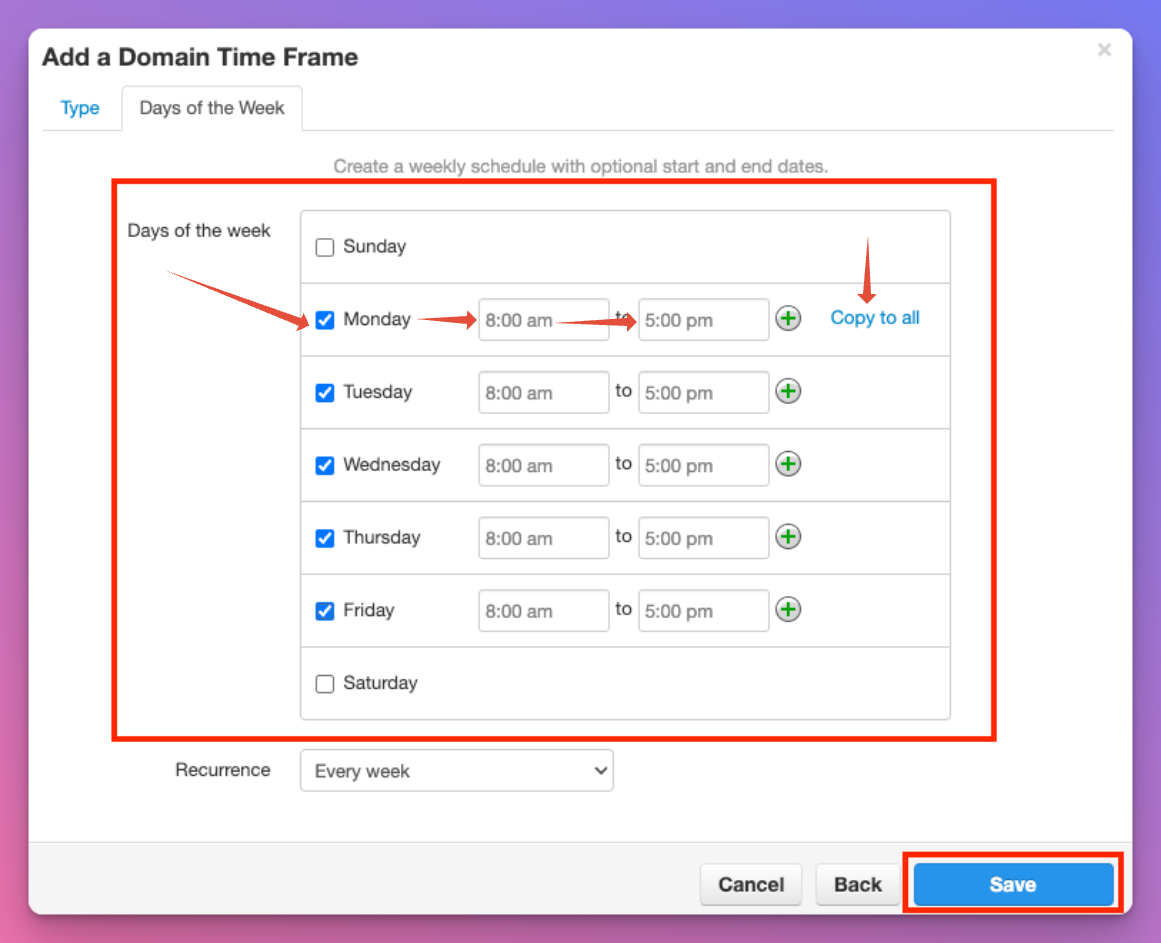
7. Checkbox every day you are open.
8. Select the time that you open, and close each day.
9. If all the days are the same, you can use 'Copy to all.'
10. Select Save
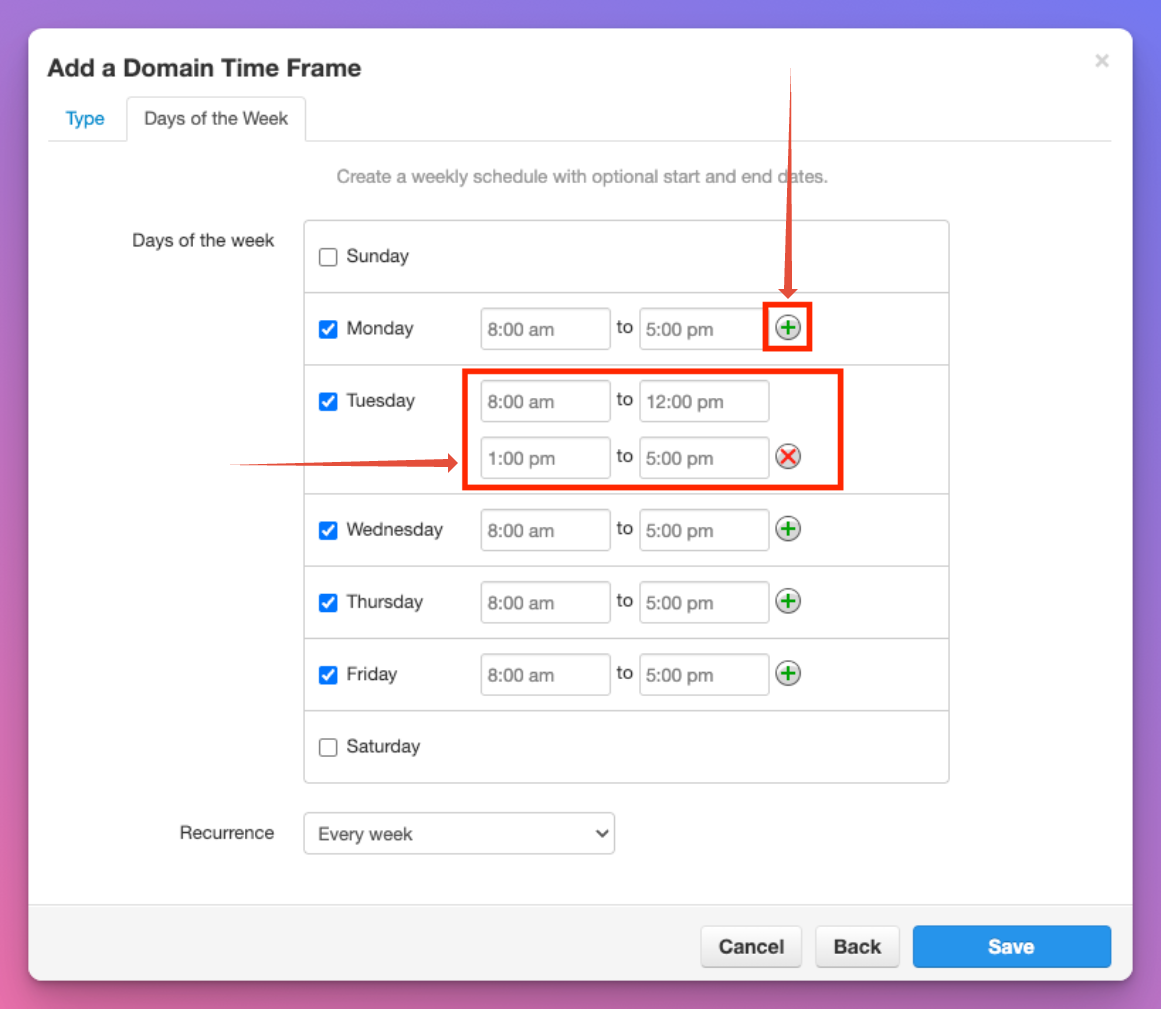
 Optional Split Timeframe - If you close for lunch, you can split the day.
1. Select the green + circle beside the day.
2. Set the time you open/close then open/close.
3. You can delete the second time by clicking the red X
Step 2: Assign a timeframe to a telephone number
Now that you've created the schedule for your business, you can assign it to a particular number. Without this step, your time frame won't do anything.
1. Log into your manager portal.
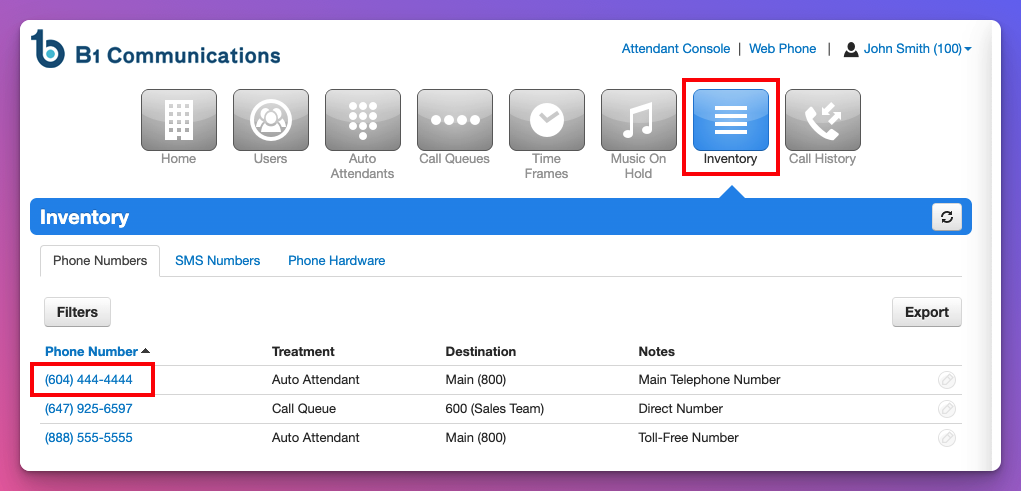
2. Select Inventory from your main menu.
3. Select the number that you wish to manage.
4. Toggle the 'Enable Time Frame' Switch On.
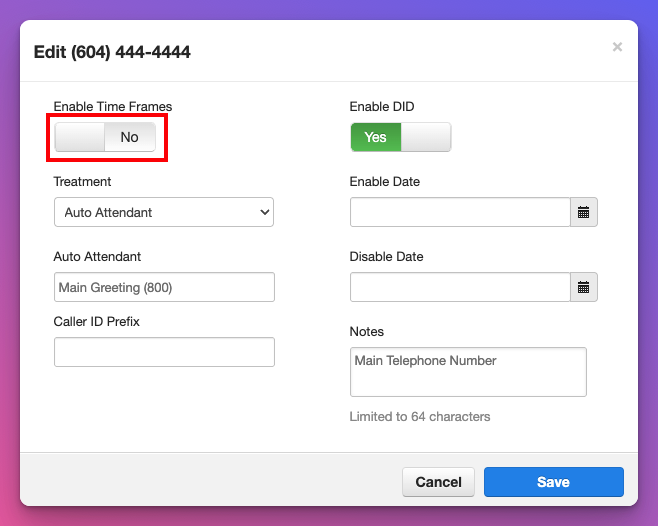
5. Confirm the timezone is correct for that number.
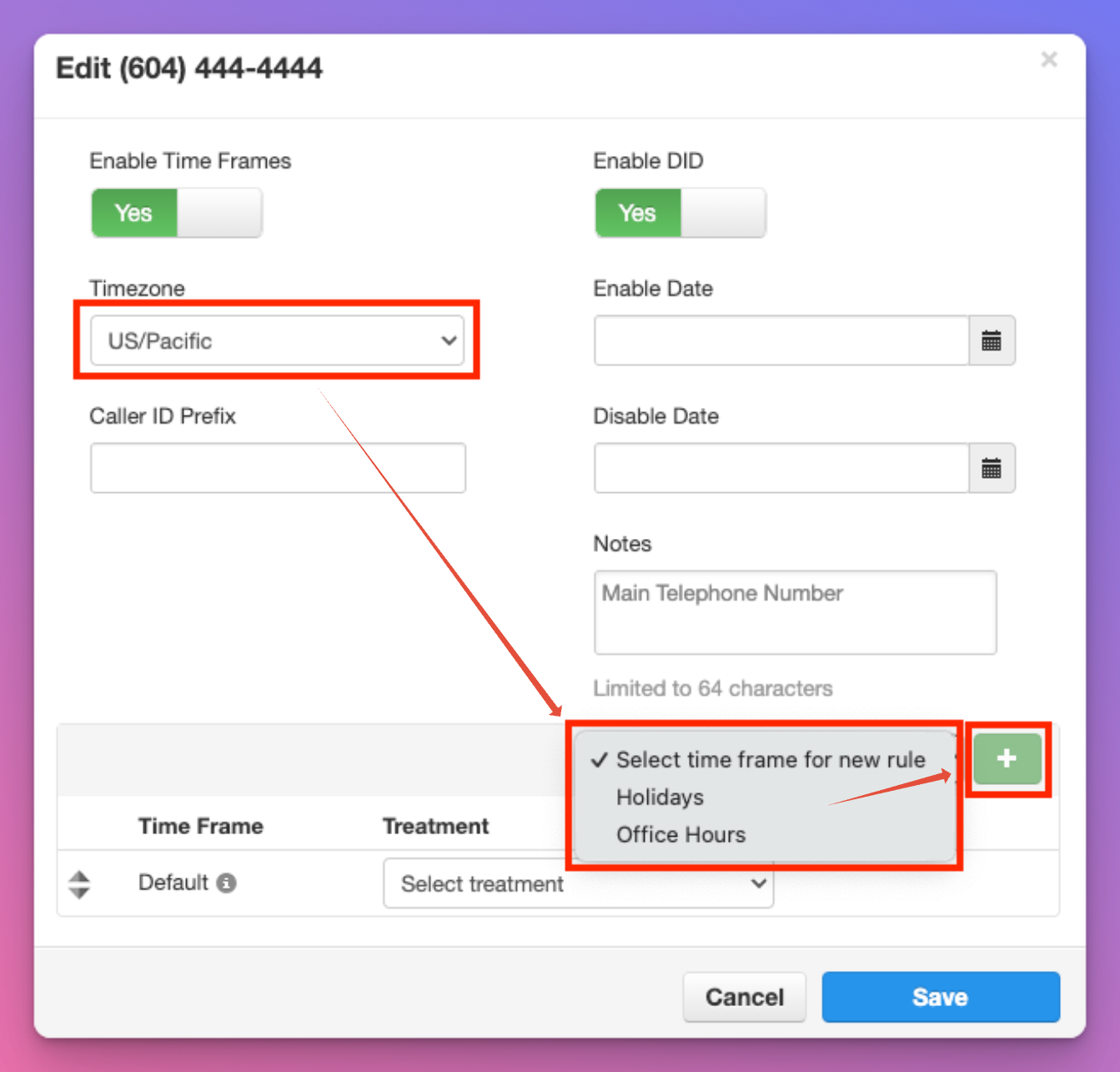
6. Use the drop down to select the time frame that you created
7. Select the green + Button beside the drop down.
Important Note
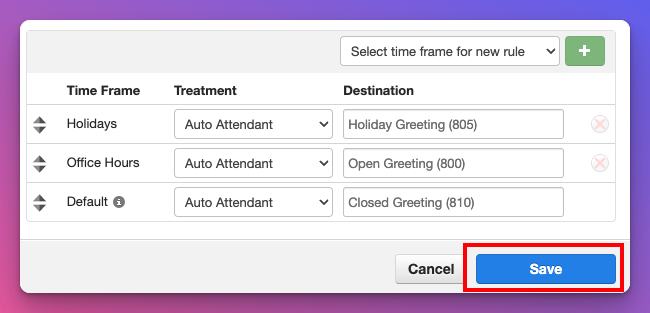
The system looks at each time frame in priority from top to bottom. With the Default time frame being a catch-all.

Meaning, you must drag and drop your office time frame above default. If you have a Holiday time frame, it must be placed at the top of your list above office hours as it overrides specific dates.
8. Select the up/down arrows beside 'office hours' and drag it above Default. If you have a 'Holiday' place it above 'Office Hours' to override that schedule on the select dates you've listed.
9. Select 'Treatment' which is where the callers go during that time period.
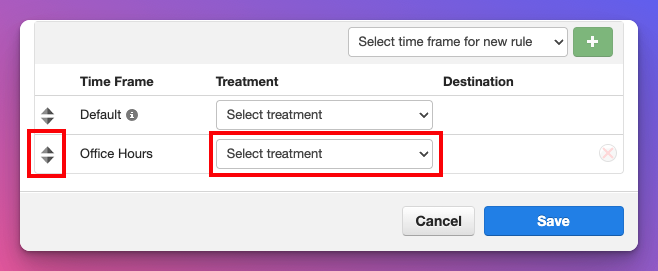
10. You have 5 options to select from.
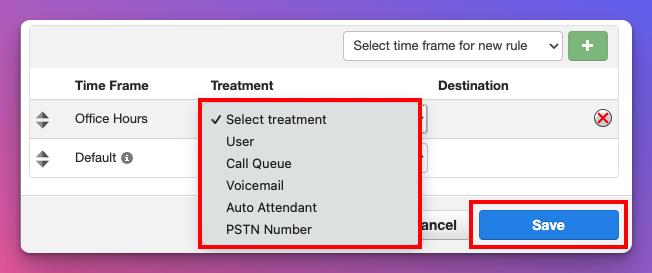
| User | During this timeframe, callers will be directed to a specific user, or ring group. You can begin typing the name, or extension number. |
| Call Queue | During this timeframe, callers will be directed to a call queue of your choice. Simply begin typing the name of the call queue or extension number. |
| Voicemail | During this timeframe, callers will be directed to a specific Voicemail Box. Simply begin typing the name of the users voicemail that you wish to direct calls toward. |
| Auto Attendant | During this timeframe, callers will be sent to an auto-attendant of your choosing. Simply begin typing the name or extension number of the auto attendant of your choosing. |
| PSTN Number | During this timeframe, callers will be directed to an external telephone number of your choosing. |
11. Select the 'Treatment' you wish to direct callers toward during that Time Frame.
- Create an Auto Attendant
- Create a Ring Group or Call Queue
12. Once you have completed your destinations, select Save.
13. We recommend testing your destination by calling the number you have selected.
14. Repeat this process for each telephone number you wish to setup. This includes the ability to create different schedules and timezones for different numbers/locations.