Setting up Sites & Departments
When you have multiple locations or a large number of users, it's a great idea to use Sites and Departments to organize users for future management.
Creating Sites or Departments
The screenshots will focus on sites, but departments is the same process.. Sites are 'locations' so you can use this to identify 'Main Office', or 'Remote Workers' or 'Calgary Branch' Meanwhile departments are areas of focus for employees. Leadership, Accounting, Sales, Etc.
1. Log into your manager portal.
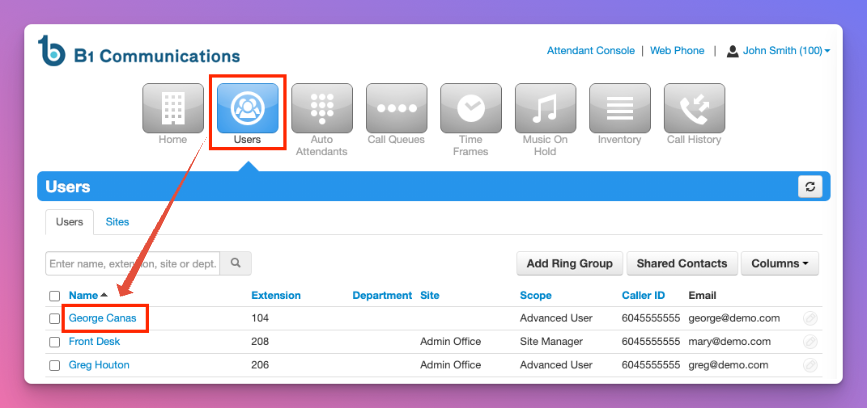
2. Select 'Users' on the navigation bar
3. Select a user you wish to assign to a site or department
4. Enter the Site Name in the correct location. If the Site is already created, it will pre-populate, or will show 'New' if you are creating a new site.
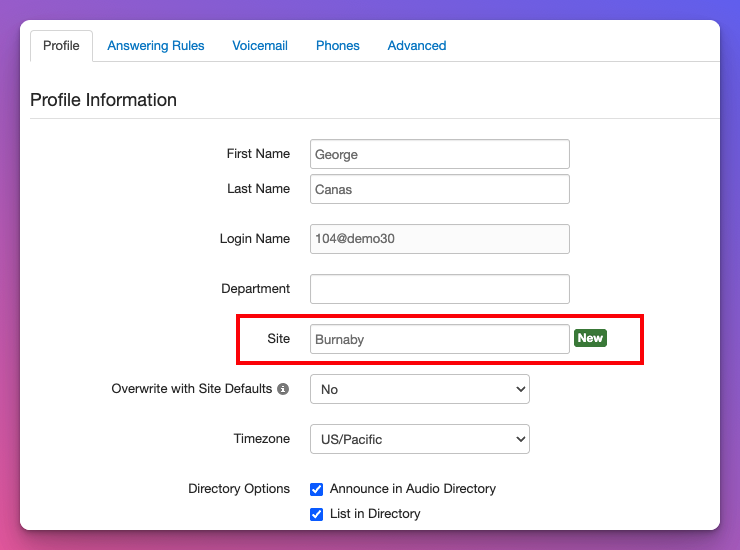
5. Repeat that process for each user that you wish to assign to that site.
Searching Users By Site
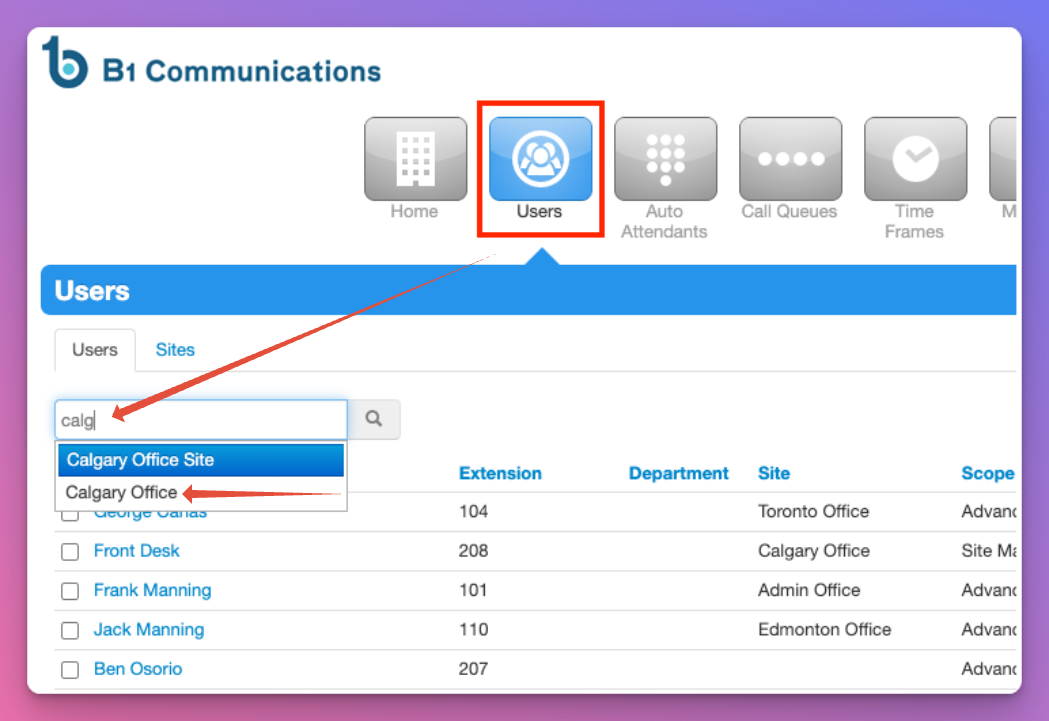
1. You can use the search bar to type the site of users you wish to view. Select the second option that doesn't include 'site' in the description.
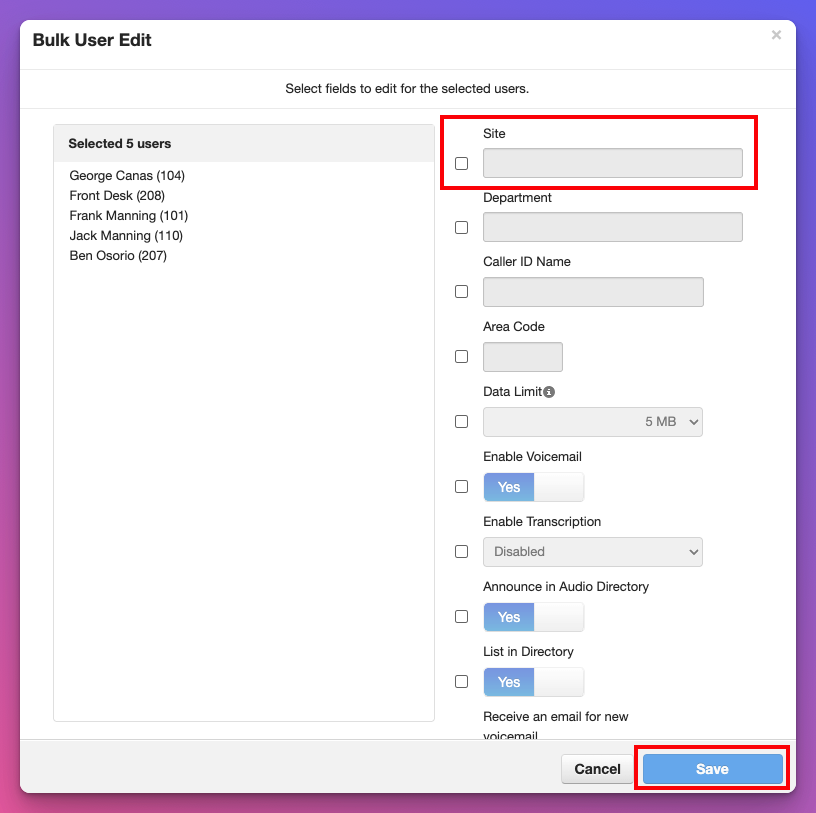
Bulk Assign Users to Site
1. Log into your manager profile
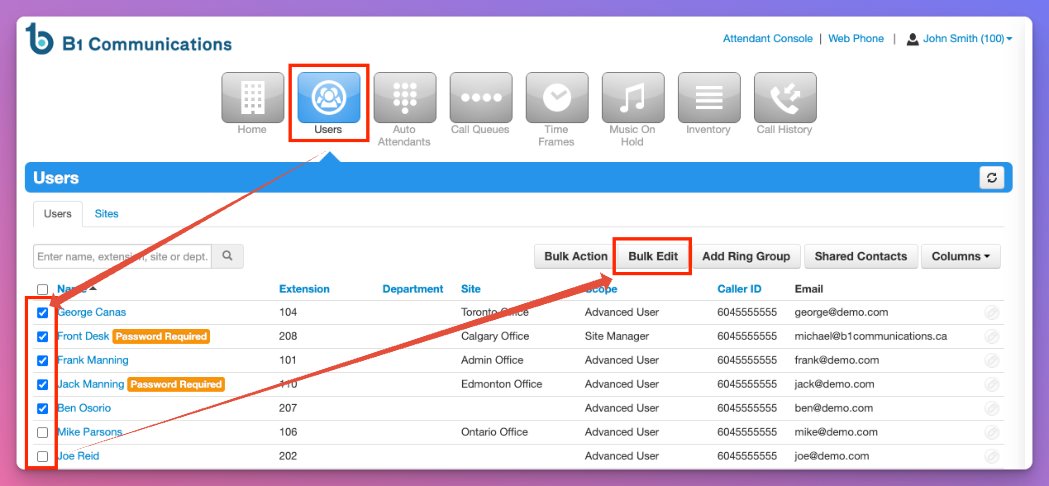
2. Go to the users tab on the main navigation.
3. Select the box for the users you wish to update.
4. Select 'Bulk Edit'
5. As you'll see with the popup, you have a number of different options to select from.