
Creating an IVR or Automated Attendant
Most businesses have an auto-attendant during office hours that answers all of their incoming calls for them.
Benefits of an auto-attendant
There are a number of benefits your customers receive when you setup an auto-attendant.
- Branding - By selecting the right 'voice' for your business, you can create a unified experience that all of your customers go through each time they call. Your auto-attendant can set the tone of your business. From serious, to playful. Professional to upbeat.
- Fast Access - By giving your customers clear options for departments and services offered, they can access the right person within your organization faster than a receptionist can transfer them.
- Cost Effective - An auto-attendant can save your front desk team countless hours each day. That is time that can be allocated toward more important work. Saving your business money & improving efficiencies.
Worried about upsetting customers?
Many business owners want that hands-on personalized human experience to prove to their customers that they care. They are worried an auto-attendant will damage this approach. Here are 3 things to consider.
- Difficulty Level - When we think of auto-attendants, are you picturing the friendly "thanks for calling our business. We are delighted to hear from you. For sales, press 1, customer service 2 and administration press 3"... Or are you thinking of the multi-layer auto-attendants that feel like a maze that you'll never escape out of? Just keep your auto-attendant friendly and straight forward.
- Customer Service - Although we picture the front desk answering quickly, with a warm smile. You simply cannot guarantee that experience. Front desk staff have good days, and bad, they may be talking to someone in-front of them, placing callers on-hold and leaving the phone to ring as they fill the coffee pot. It's going to be a hit and miss when it comes to customer experience when you have a front desk receptionist answering.
- Response Time - Instead of your caller having to explain their situation, callers can get the person who can actually help them, avoiding the repeated story telling which is frustrating your callers.
Callers must select an option
When creating an auto-attendant, callers must select an option to move to depart the auto-attendant. There isn't an option of 'Stay on the line to be connected" or "Stay on the line to leave a voicemail."
Setting up your auto-attendant
Now that we've decided to create an auto-attendant, these are the very simple steps that you can use in your manager portal.
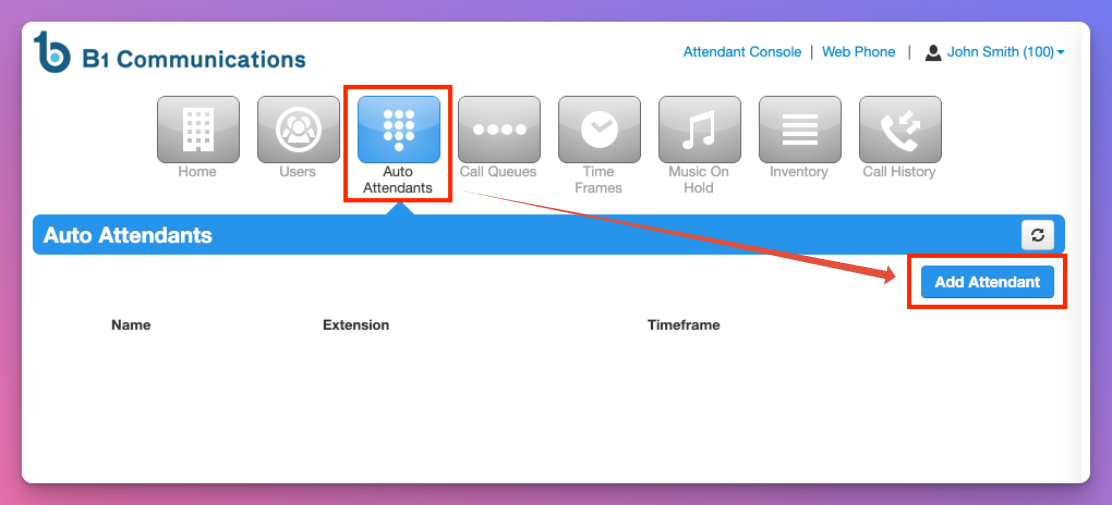
1. Log into your Manager Portal and select 'Auto Attendant' from the main menu.
2. Select 'Add Attendant.'
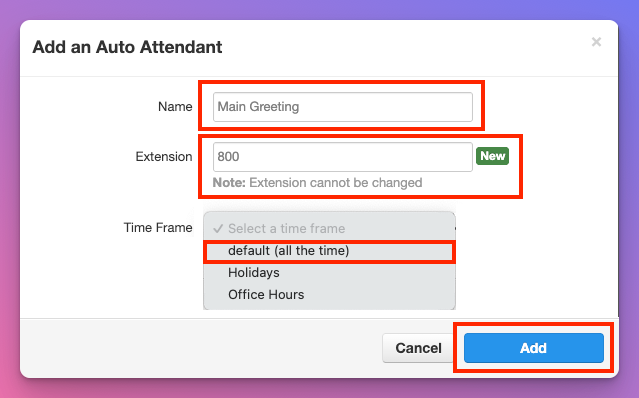
3. Name your auto-attendant something like 'Main Greeting,' 'Open Greeting' or "Richmond Location."
4. Create a unique 3 digit extension number. We always recommend using the 800 number range. For example 800 for your main greeting, 805 for closed, 810 for holidays, etc.
5. Select the Default Timeframe. (Very Important)
6. Select Add to create your auto-attendant
Default Timeframe Requirement
Even if you are creating a greeting for a specific date or time, always use Default Time Frames when creating auto-attendants. Timeframes are set at the telephone number level.
7. Now that your auto-attendant is created, you're going to want to create the voice that customers hear when they call into your business.
8. Select the 'Manage' icon beside the 'Intro Greeting'
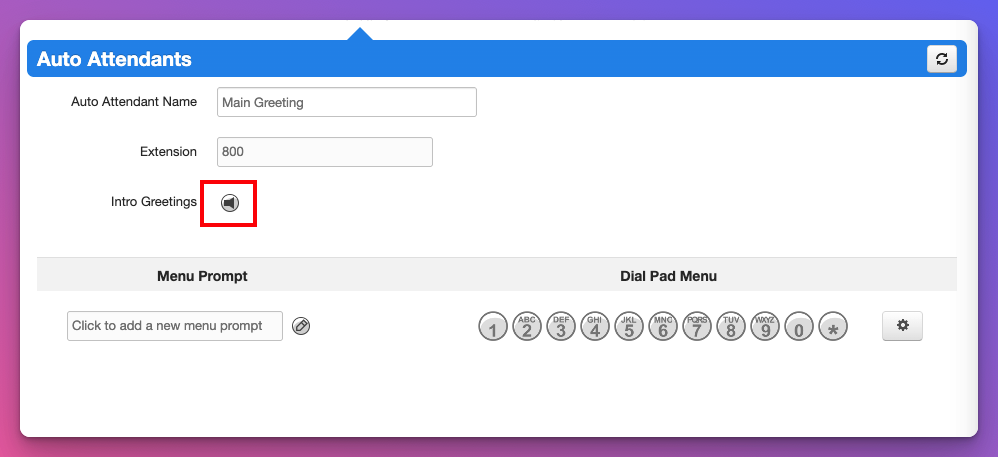
9. If there is a greeting already there, you can select Edit. Otherwise, select "Add Greeting'
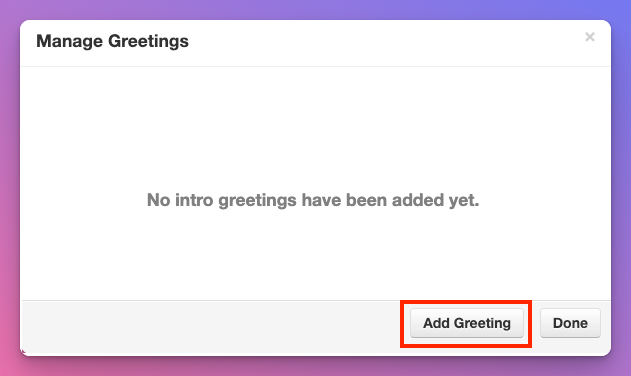
10. You have three options to choose from when creating your auto attendant.
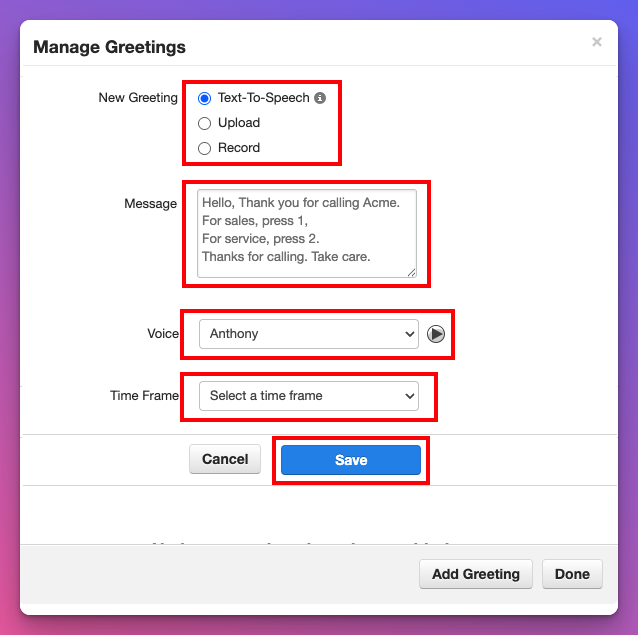
- Text-To-Speech using our AI Voices. Type out your message (Avoid symbols like &, #, @) You may need to misspell the name of your business or team members for the AI Voices to accurately pronounce it.
- Upload a recording. You can hire a Voice Actor on voices.com or other platforms that can provide you a professional recording for your auto-attendant.
- Record your own. Have someone on your staff record the greeting using their phone.
Auto-Attendant Script Ideas
Get some ideas and best practices for your auto attendant scripts.
11. If you are using the Text-To-Speech option, you'll want to select the right voice for your message. Use the play button to hear how it sounds. We recommend Daniel or Holly as our top choice for male and female voiceovers.
12. Select 'Default' as the timeframe. (Even if you are scheduling your auto-attendant for specific timeframes, use default.)
12. Select 'Save' when you are done.
System Glitch When Saving Your Script
Sometimes after typing out your greeting, selecting save, your greeting may say say 0:00 seconds. Just simply exit the auto-attendant you are editing and return. If it's still not there, you may be selecting 'Done' and not saving your recording.
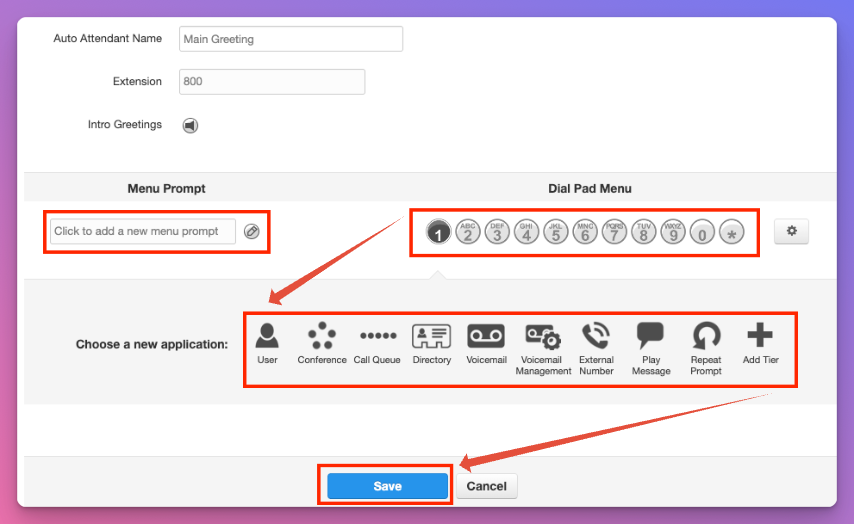
13. You have plenty of programming options that you can use to direct and route callers as needed...
| User | This sends callers to either an individual user, or you can use this option for a Ring Group. |
| Conference | This will send a caller to a conference room if you have one. This is rarely used. |
| Call Queue | This will send callers to your Call Queue to be answered in priority sequence. |
| Directory | This is a dial by name directory that is automatically updated. We recommend using option '8' for your dial by name directory as it standard practice in telecom. |
| Voicemail | Useful if you want to send a caller directly to a voicemail. |
| Voicemail Management | Rarely used, this would be for internal use if an employee wanted to access their voicemail box. |
| External Number | As described, callers will be sent to an external number. This can be both a local or toll-free number but cannot be international. |
| Play Message | Used for things like address or other details, callers can be redirected to the main menu after hearing the message or sent somewhere else. |
| Repeat Prompt | This is useful for long auto-attendants with many options. However, your greeting must be recorded under the 'Menu Prompt' header as the intro greeting will not repeat itself when selected. |
| Add Tier | Allowing multiple levels for your auto--attendant. Think "press 1 for English and 2 for french." or Press 1 for accounting followed by a new tier which says 'for accounts payable, press 1, for accounts receivable, press 2" You'll be able to record the new tier's greeting on the left side of your screen under the menu prompt header. |
14. Select the number you wish to manage, and then the option you wish to use.
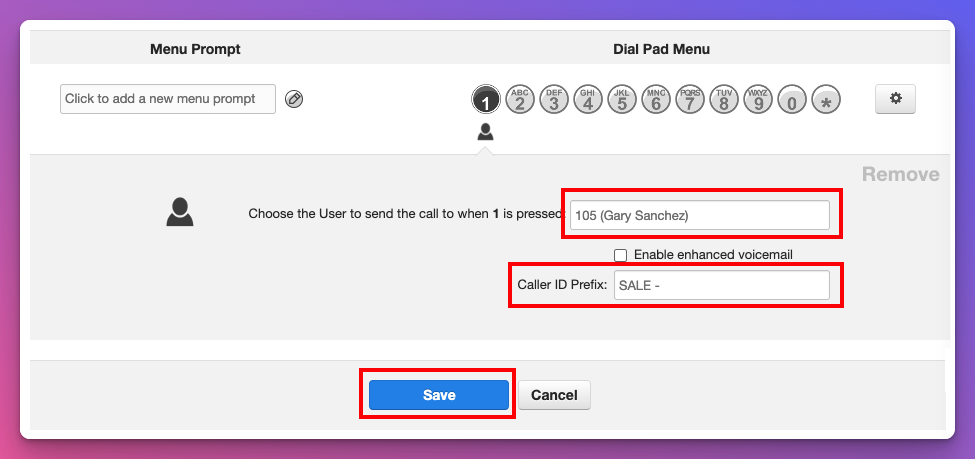
15. When using 'Users' or 'Call Queue' you'll have the option to create a 'Caller ID Prefix' which is a visual indicator that comes up on call display. For example, if you have one staff member that takes sales and service calls, you can distinguish callers using this method.
16. You also have the option to disable 'enhanced voicemail' which we recommend. It gives the caller unnecessary options.
Activating Your Auto Attendant
Now that you have create your auto-attendant, we recommend testing it by calling the extension you used, for example 800 on your B1 Communications phone. You'll be able to hear your greeting, press all the options and test all the functionality.
Create Timeframes / Schedule
If you are looking to create an auto-attendant schedule, follow these steps to create your Time Frames.
Always Use Auto-Attendant
If you wish to use the auto-attendant 24/7, follow the steps below.
1. In your Manger portal, select the "Inventory" tab.
2. Select the edit icon of the phone number you wish to use the auto-attendant on.
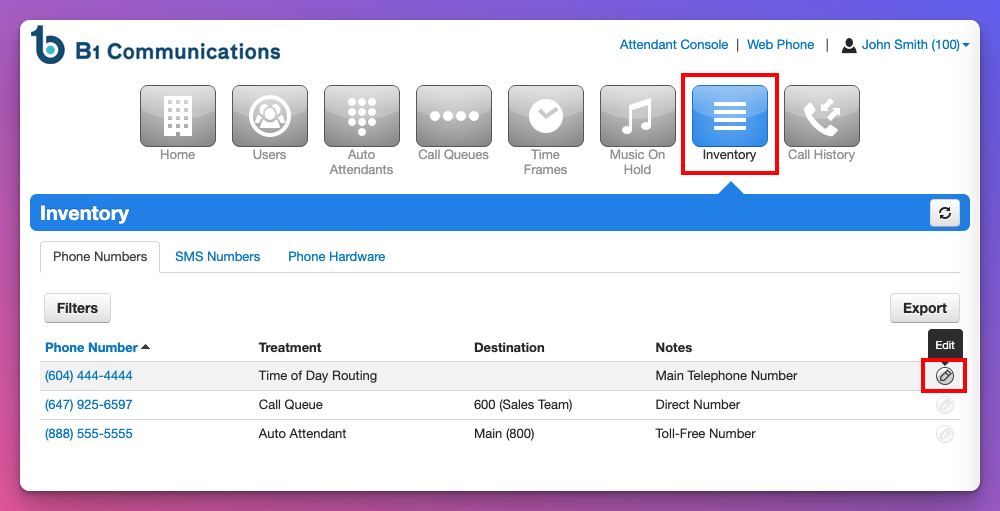
3. Verify that 'Timeframes' are disabled on the top left corner.
4. For Treatment which where callers are sent. Select 'Auto-Attendant'
5. Enter the name or extension number of the auto-attendant that you created
6. Select Save
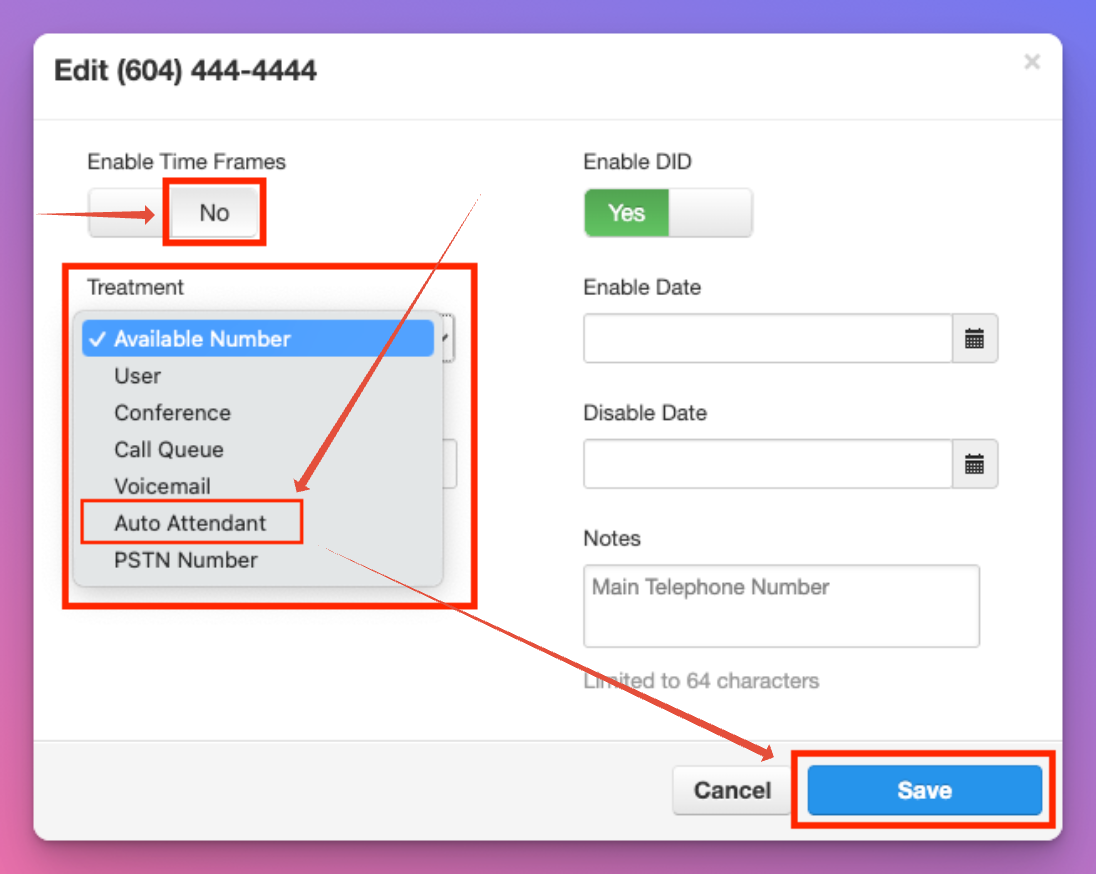
7. Place a test call to verify that your auto-attendant is working the way you expected.
Auto-Attendnat Introduction Cutting Off?
We have found that some cellphone providers cut off the first second of our auto-attendants. If you are experiencing this, we recommend adding 'Hello, thank you for calling..." This ensures that customers either hear the full greeting, or get cut off and start with "thank you for calling..."