Create an auto attendant with multiple language options
We live in a multicultural society and if your business offers service in different languages, we can help. We have many customers that offer services in French, Mandarin, Cantonese, Spanish, Hindi, first nation languages, and many more.
Platform Limitations
Although you can create an auto-attendant using any language you desire, our platform and system are only available in English. This includes our AI Text-to-speech voices, system announcements for voicemail, dial by name directories and other announcements.
Creating a multi-lanaguge auto-attendant
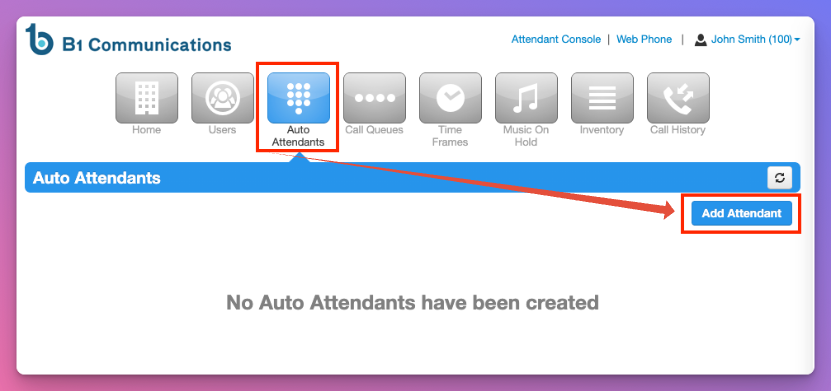
Step 1. Log into your manager portal and select 'Auto Attendant' in the top navigation.
Step 2. Select 'Add Attendant' on the right side of your screen.
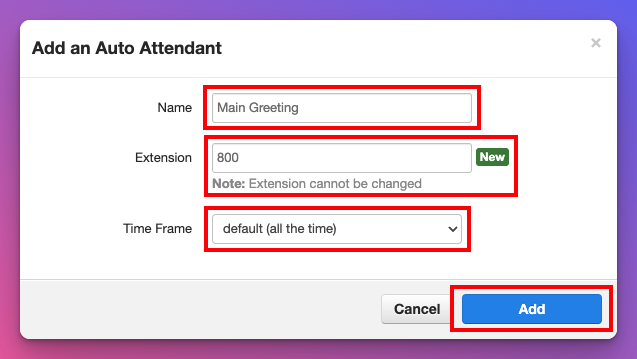
Step 3. Create the title of your greeting like "Main Greeting" or "Language Selection"
Step 4. Create a 3 digit unique extension number. We recommend using the 800 bank for auto-attendants.
Step 4. Select Default for the timeframe. Even if you are planning on creating a schedule, use default when creating the auto-attendant.
Step 5. Select 'Add'
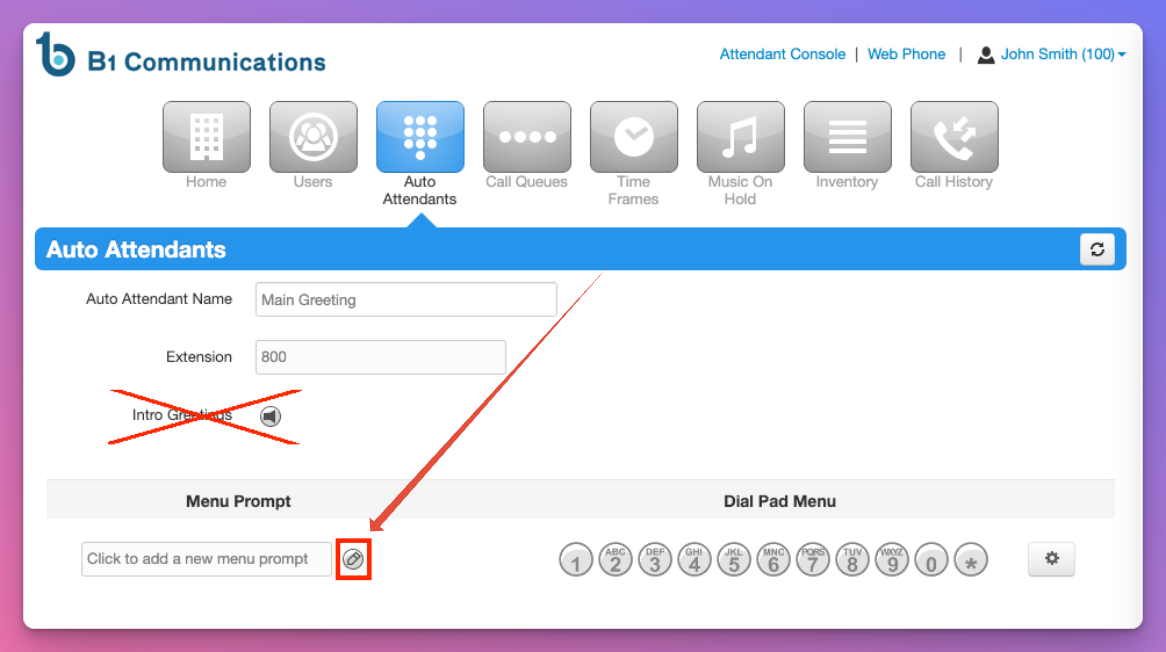
Step 6. You'll want to skip the 'Intro Greeting' and instead select the Edit icon below the Menu Prompt Header.
*You will be creating multiple tiers for this auto attendant. If a caller wants to return to the main menu, the intro greeting won't be replayed and only the greeting under the 'Menu Prompt' header will be heard.
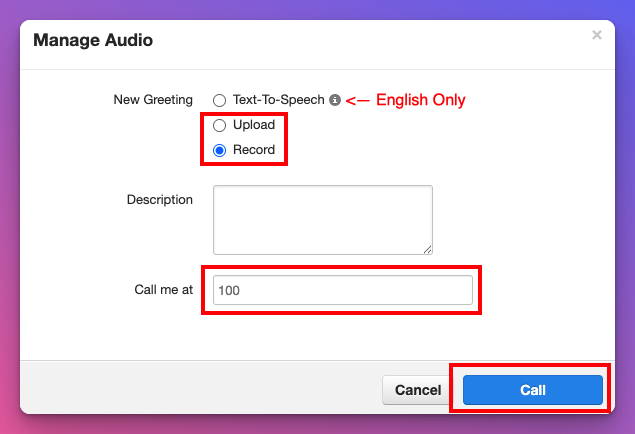
Step 7. Our AI Text To Speech voices are only available in English at the moment. You can google various options like Luvvoice which offers over 70 languages free. Or someone on the team can record the greeting by selecting record, and call me at with their number in your preferred language.
Step 8. When recording the greeting, it should be a short. 'Thank you for calling Acme. For English, press 1, for Cantonese, Press 2."
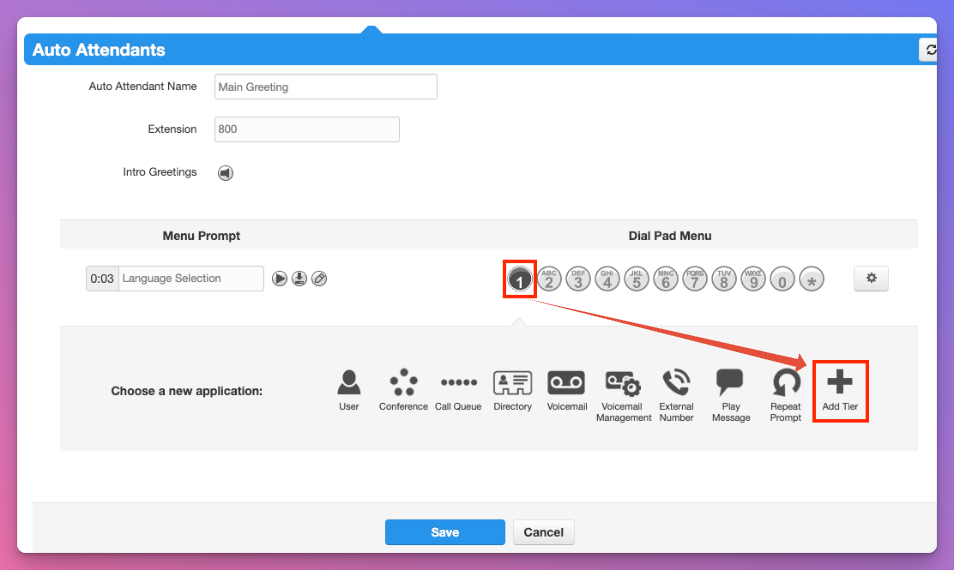
Step 9. Select the first language option. For instance, '1' could be English.
Step 10. Select 'Add Tier'
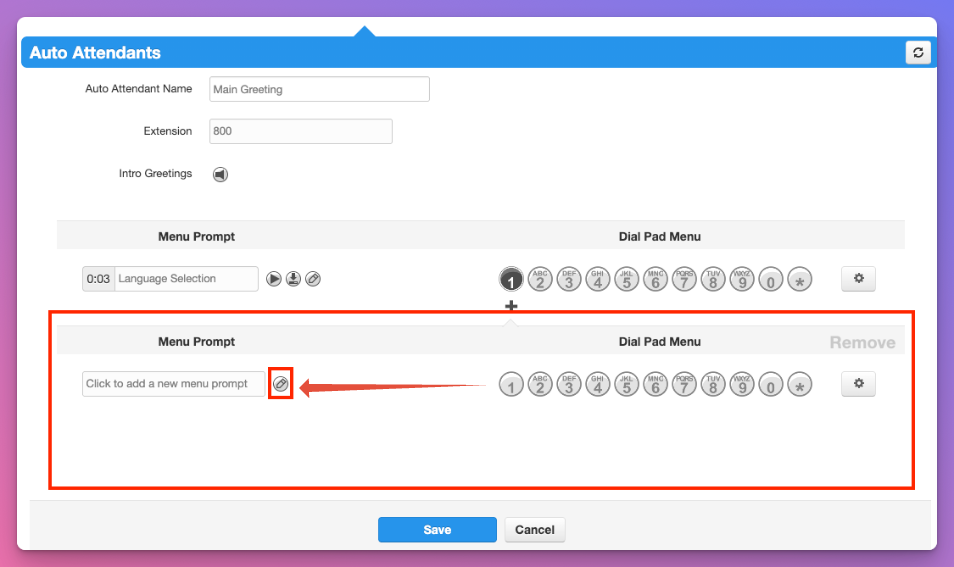
Step 11. You will now see an additional 'Menu Prompt' under 1.
Step 12. You will record or upload a recording in that language.
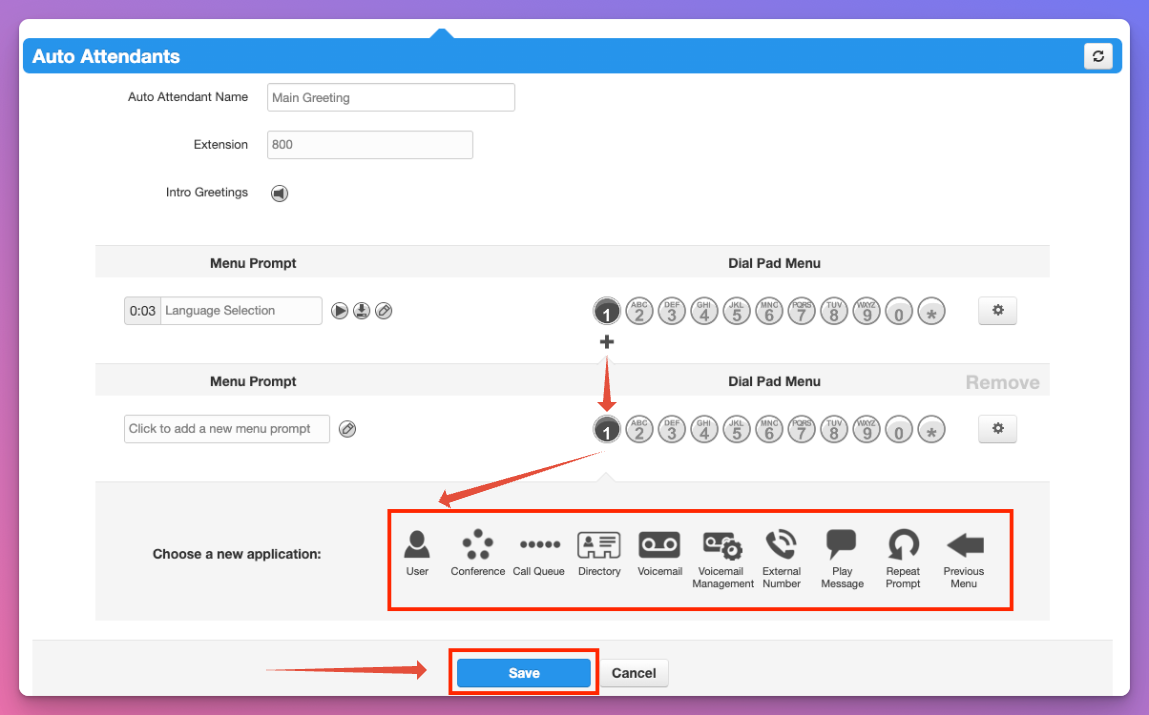
Step 13. You have plenty of programming options that you can use to direct and route callers as needed...
| User | This sends callers to either an individual user, or you can use this option for a Ring Group. |
| Conference | This will send a caller to a conference room if you have one. This is rarely used. |
| Call Queue | This will send callers to your Call Queue to be answered in priority sequence. |
| Directory | This is a dial by name directory that is automatically updated. We recommend using option '8' for your dial by name directory as it standard practice in telecom. |
| Voicemail | Useful if you want to send a caller directly to a voicemail. |
| Voicemail Management | Rarely used, this would be for internal use if an employee wanted to access their voicemail box. |
| External Number | As described, callers will be sent to an external number. This can be both a local or toll-free number but cannot be international. |
| Play Message | Used for things like address or other details, callers can be redirected to the main menu after hearing the message or sent somewhere else. |
| Repeat Prompt | This is useful for long auto-attendants with many options. However, your greeting must be recorded under the 'Menu Prompt' header as the intro greeting will not repeat itself when selected. |
| Add Tier | Allowing multiple levels for your auto--attendant. Think "press 1 for English and 2 for french." or Press 1 for accounting followed by a new tier which says 'for accounts payable, press 1, for accounts receivable, press 2" You'll be able to record the new tier's greeting on the left side of your screen under the menu prompt header. |
14. Select the number you wish to manage, and the option you wish to program.
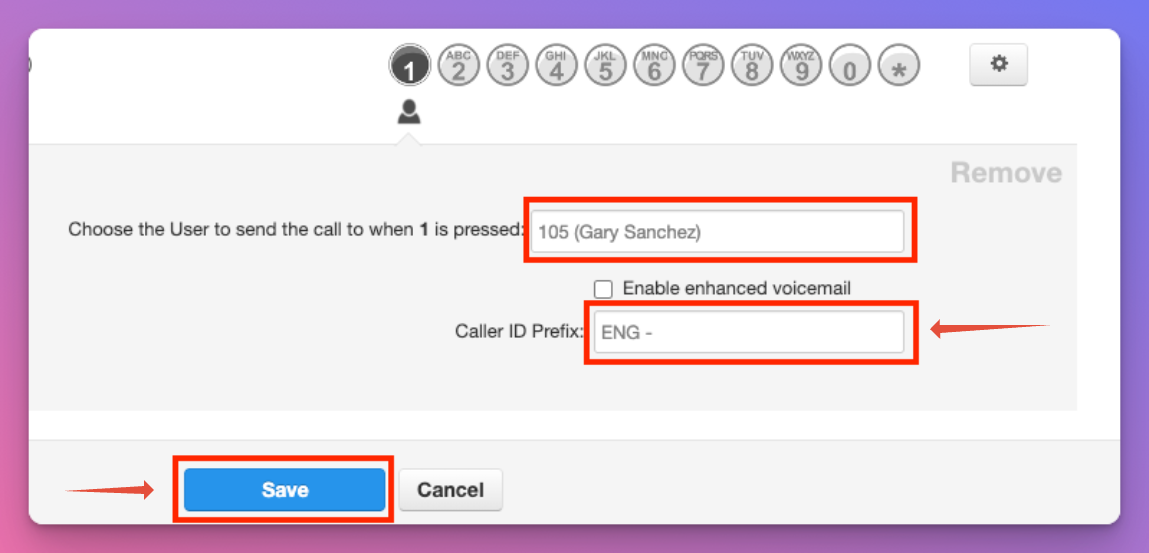
15. When using 'Users' or 'Call Queue' you'll have the option to create a 'Caller ID Prefix' which is a visual indicator that comes up on call display. Perfect if you have staff assigned to multiple languages. You can tell them which language the caller prefers so they can answer in that lanaggae.
16. You also have the option to disable 'enhanced voicemail' which we recommend. It gives the caller unnecessary options.